
How to Upload Employee Locations:
When you need to add multiple locations to the employment contracts for multiple employees, there are two ways to upload a location for each employee:
Upload the location on the Employees page:
Go to the Employees tab.
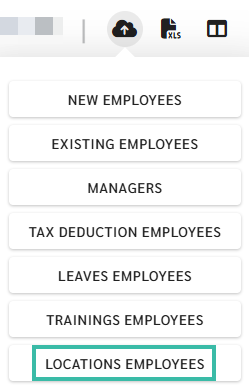
Click the Upload Employees icon.

Select Locations Employees
Select the Company to which you want to upload employees locations.
Click Next.

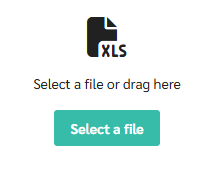
Select a file to upload.
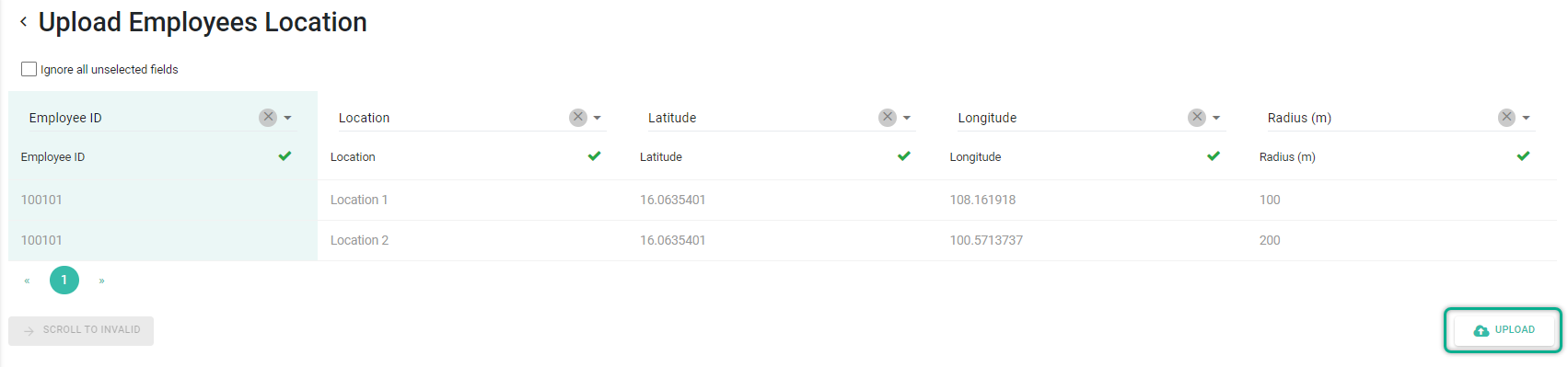
Match the fields and click Upload.
Upload the location under the Preferences tab:
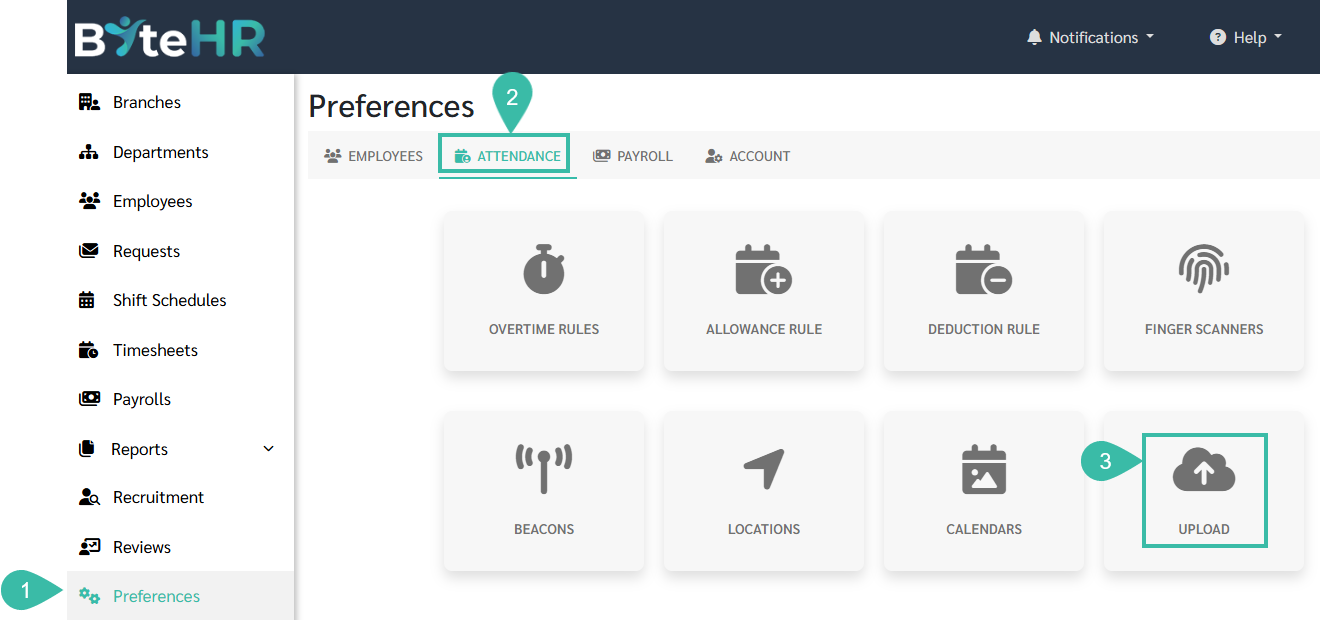
Go to Preferences tab.
Select Attendance.
Click Upload.
Click Upload Employees Location.
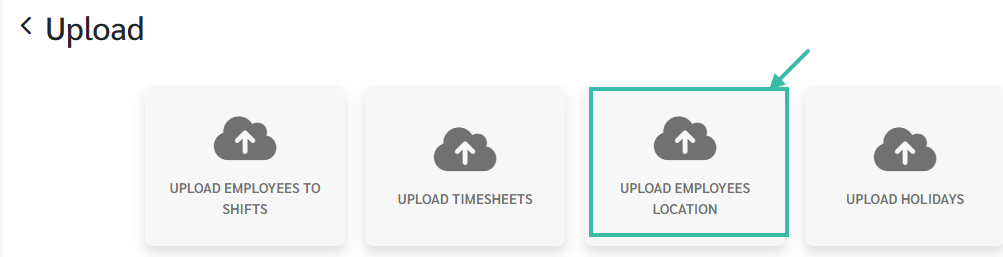
Select the Company to which you would like to upload employee locations.
Click Next.

Select a file to upload.
Match the fields and click Upload.

The information in the employee location upload template includes:
Employee ID
Location Name: You can define your own location name for each position, such as Head Office, Onsite 1 Onsite 2.
Street Address: You can specify the address of the location, such as Lingkaran Syed Putra, Mid Valley City, 59200 Kuala Lumpur, Wilayah Persekutuan Kuala Lumpur
Latitude & Longitude:
You can find latitude and longitude using Google Maps.
Latitude: The first group of numbers after the @ symbol.
Longitude: The second group of numbers is the longitude.
Example: Mid Valley Megamall Latitude: 3.1175628, Longitude: 101.6748324

Radius (m) This defines the radius (horizontal) of the location where check-ins are possible.
For example, setting a radius of 100 meters.
If someone checks in within the specified radius, the system will display the location according to the name you have set.
Example of a template with completed information.
Upload the location information for employee ID 2468:
Location Name: Head Office
Address: Lingkaran Syed Putra, Mid Valley City, 59200 Kuala Lumpur, Wilayah Persekutuan Kuala Lumpur
Latitude: 3.1175628
Longitude: 101.6748324
Radius: 100 meters


