

💬 Note
Payroll is generated by approving the Timesheets. The system computes Pay based on the number of Days Worked. Fixed Payments are not included when calculating the Ordinary Rate of Pay (ORP) or Absence Deduction. If the deduction should include Fixed Payments, calculate the difference between the required deduction and the amount calculated by the system, then apply the difference manually through the payroll adjustment process.
By Default:
When an employee is Absent, the system deducts the amount directly from the Salary.
The Deduction is not displayed separately in the Deductions section.
If you would like the Absence Deduction to appear as a separate line item under Deduction in Payroll, follow the steps below:
Go to Preferences.
Select Account.
Click Settings.
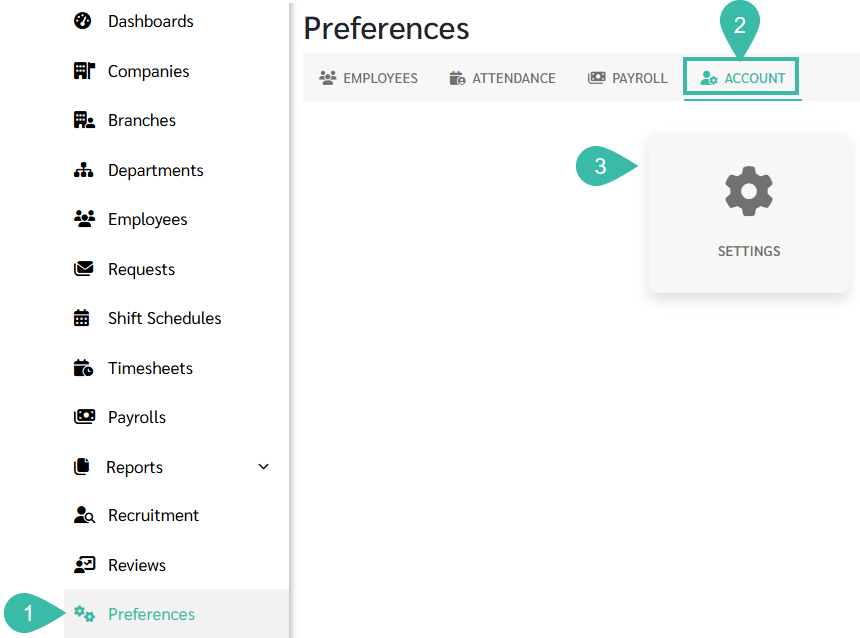
Tick the Show Deduction checkbox under Deduct Absence From Salary.

Navigate to Preferences.
Select Payroll.
Click Deductions.
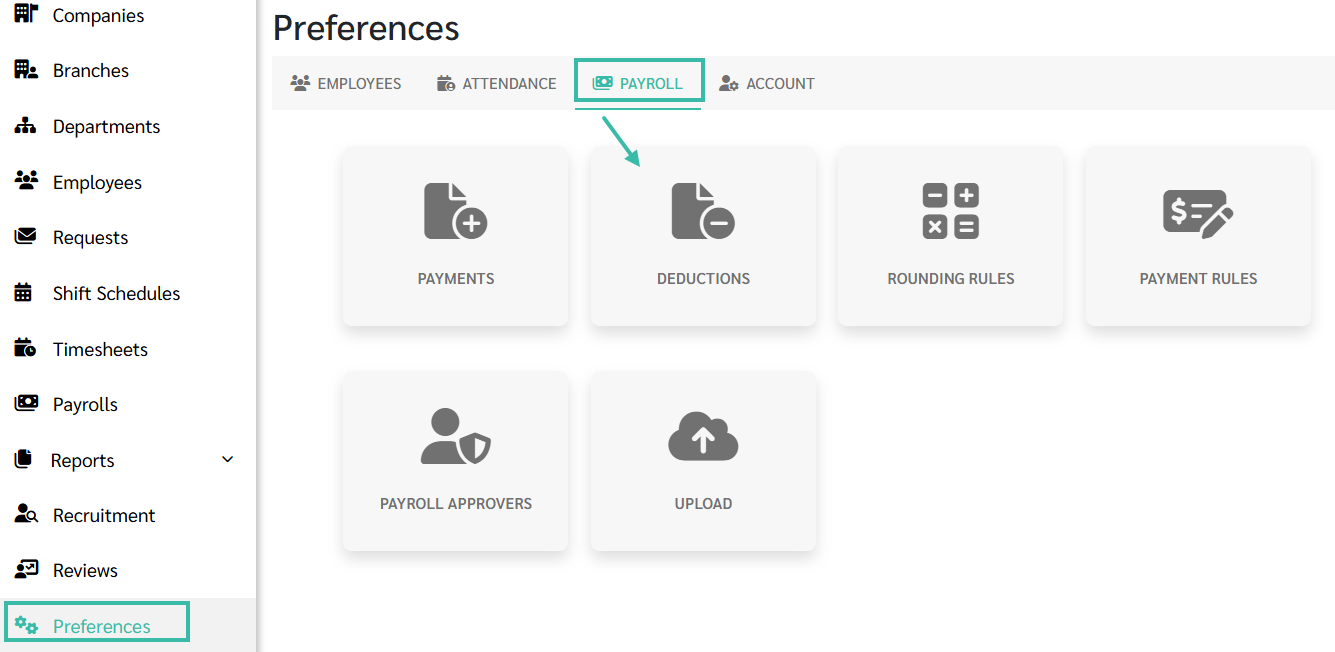
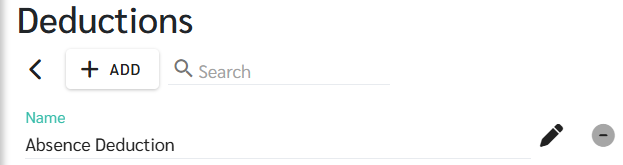
The system will display a Deduction Name: Absence Deduction.
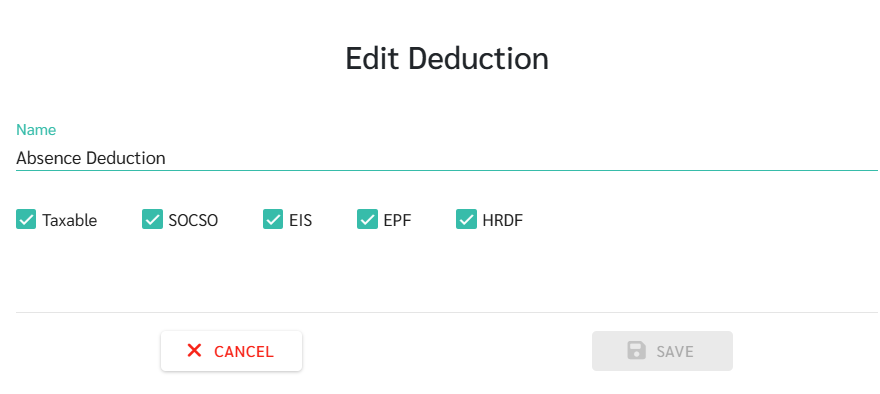
You may configure the following statutory contributions. Before checking the EPF and SOCSO contribution tables, ByteHR subtracts the unpaid leave (UPL) or absence deduction from the basic salary to calculate the contribution salary. For example, RM 2,700 basic salary − RM 207.69 UPL/absence deduction = RM 2,492.31. The resulting salary range determines the EPF employee amount of RM 275, EPF employer amount of RM 325, SOCSO employer amount of RM 42.85, and SOCSO employee amount of RM 12.25.
Taxable
SOCSO
EIS
EPF
HRDF
When Show Deduction is enabled:
The employee's salary will be shown according to the Employment Contract.
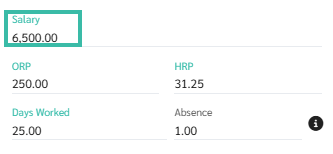
Absence and Unpaid Leave amounts will appear separately under the Deduction section.
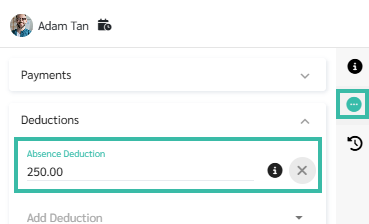
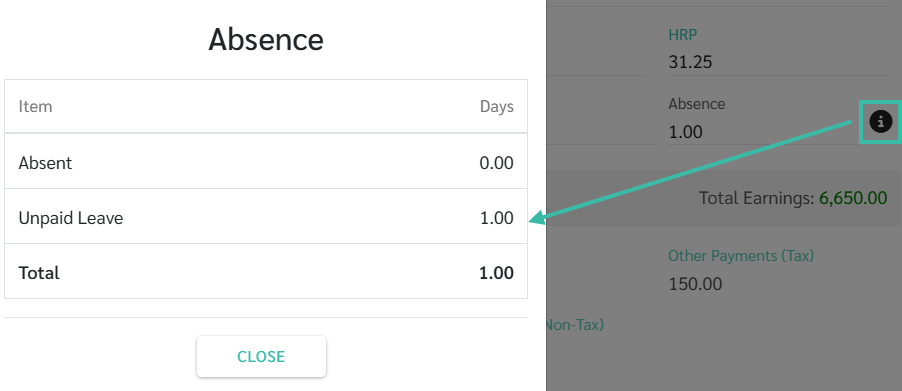
You can click the Absence field to view:
Number of Absent days in the Payroll period.
Number of Unpaid Leave days in the Payroll period.
⚠️ Caution:
The Absence Deduction item cannot be deleted from the system.
If you do not want the Deduction to be displayed separately:
Go to Preferences - > Select Account -> Click Settings -> Untick the Show Deduction checkbox under Deduct Absence From Salary
When disabled:
The Deduction will not be shown in Payroll calculation, the Salary will be deducted accordingly.
The Absence Deduction will not appear in the Deduction section in the Payroll.
