
Question: Why is it not possible to edit Deductions such as Absence deductions in the Pay details?
Answer: If the Absence deduction is set to a separate deduction, and that deduction is set to "Absence," when the timesheet is approved for payroll processing and there are days of absence, the payroll details will show that deduction. This deduction cannot be edited or deleted.
Go to Preferences -> Account -> Settings -> Look at Deduct Absence From Salary (Ticked)

Go to Preferences -> Account -> Deductions.
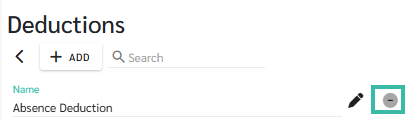
The name of the deduction that will be shown in the deduction list for employee absenteeism will have a symbol as shown in the image.
This deduction cannot be removed. If you do not wish to display it, disable it in the Settings menu (Preferences).
Example settings | Schedule 01/03/2025 - 31/03/2025 | Salary details |
Deduction Name Absence Salary rate = RM 5,500 Work Days/Month = 26 days | Absent from work = 1 day | Days Worked = 25 days Absence = 1 day Salary = RM 5,500 Absence Deduction = RM 211.54 |
📝 Note
If you need to manually correct an Absence Deduction, create a deduction type named "Absent Deduction" in Preferences and generate the payroll. For multiple employees, upload Other Payments using only the Employee ID and Absent Deduction columns, and enter the shortfall between the required absence deduction and the amount calculated by the system. Alternatively, update the Absent Deduction amount in the related tab of the payroll side panel. Check Payroll Details to confirm the deduction was adjusted correctly.