
Normally, when setting up payroll, the Overtime cut-off date is the same as the Salary cut-off date. However, admin may configure a different Overtime Cut-Off date from the Salary Cut-Off date by following the below steps:
Go to Company / Branch.
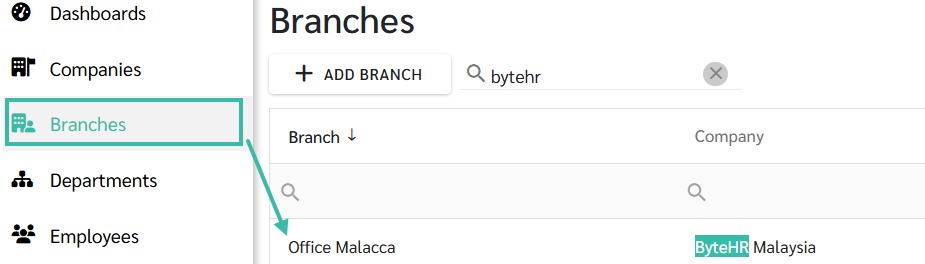
Go to Payroll Setting.
Scroll to Overtime section and configure the following fields:
Cut-Off Date: Click the drop-down menu and select the desired Overtime Cut-Off Date.
Period: Click the drop-down menu and select the applicable Overtime period.
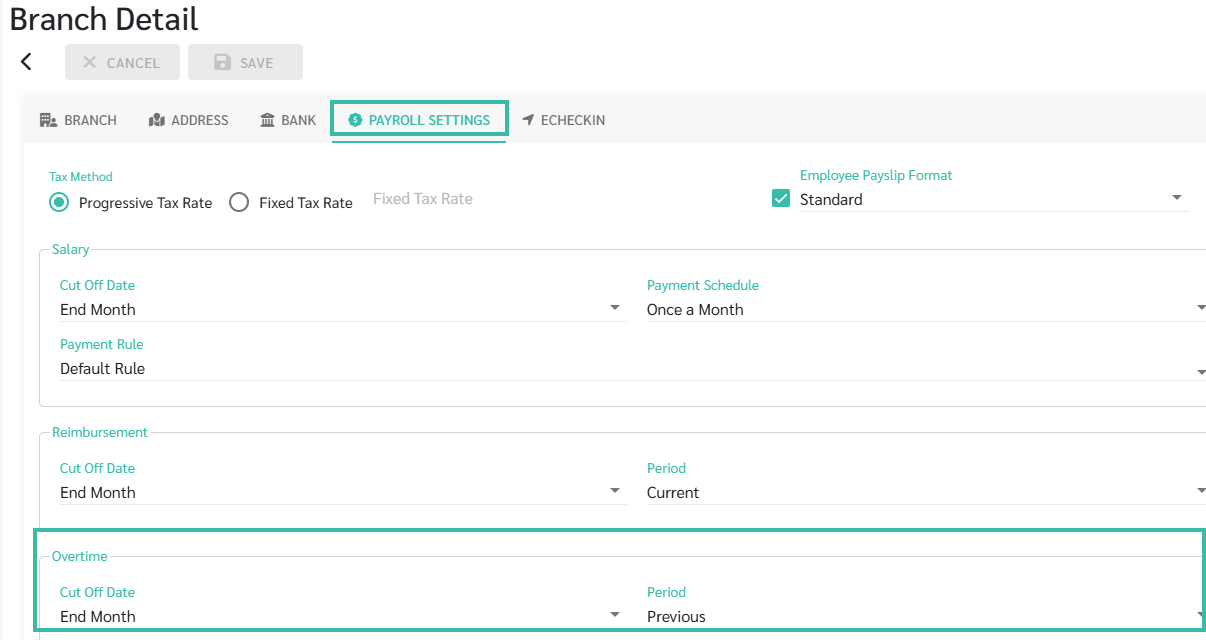
Click Save to apply the changes.
Example:
Salary Cut Off Date: End Month
Payment Schedule: Once a Month
Overtime Cut Off Date: End Month
Overtime Period: Previous
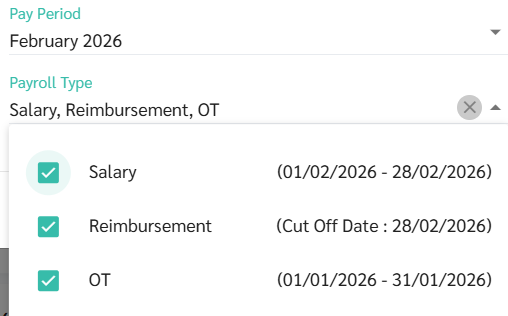
The Payroll will show:
Salary Period: 01/02 2026 - 28/02/2026
Overtime Period: 01/01/2026 - 31/01/2026
This allows the Overtime from the previous month to be processed in the current payroll cycle.

💬 Note
The Overtime Cut-Off configuration will take effect when Timesheets are Approved for Payroll processing.
After selecting the Payroll period, the system will automatically display the below items based on the configurations defined in the Payroll Settings under Company/Branch:
The Payroll Period, and
The Overtime Period