
How to Add Foreign Currencies
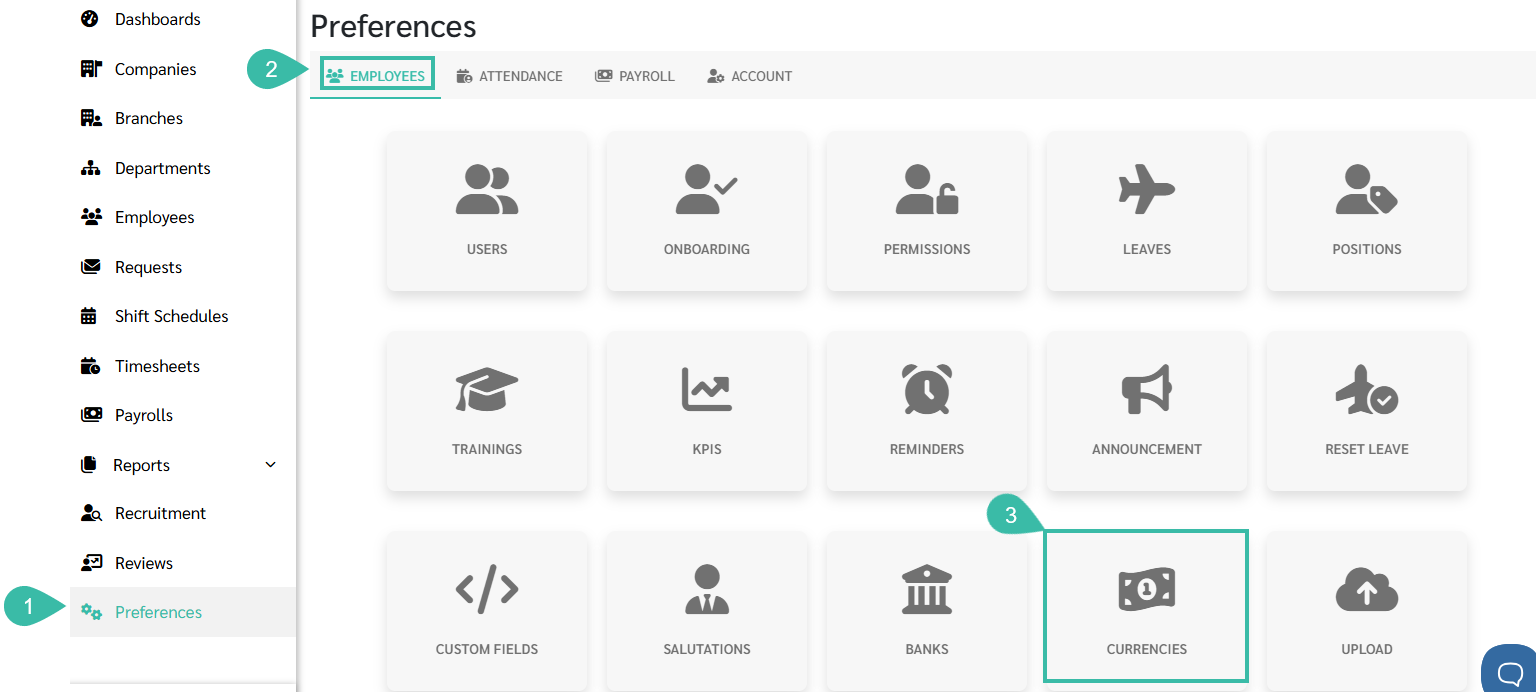
Go to Preferences tab.
Select Employees.
Click Currencies.
Click + Add to add a new currency.

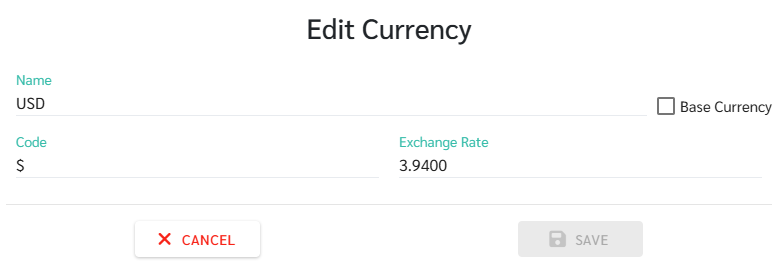
Select the desired foreign currency and enter the exchange rate.
For example: If an employee's salary is in USD and paid in MYR.
1 USD = 3.94 MYR
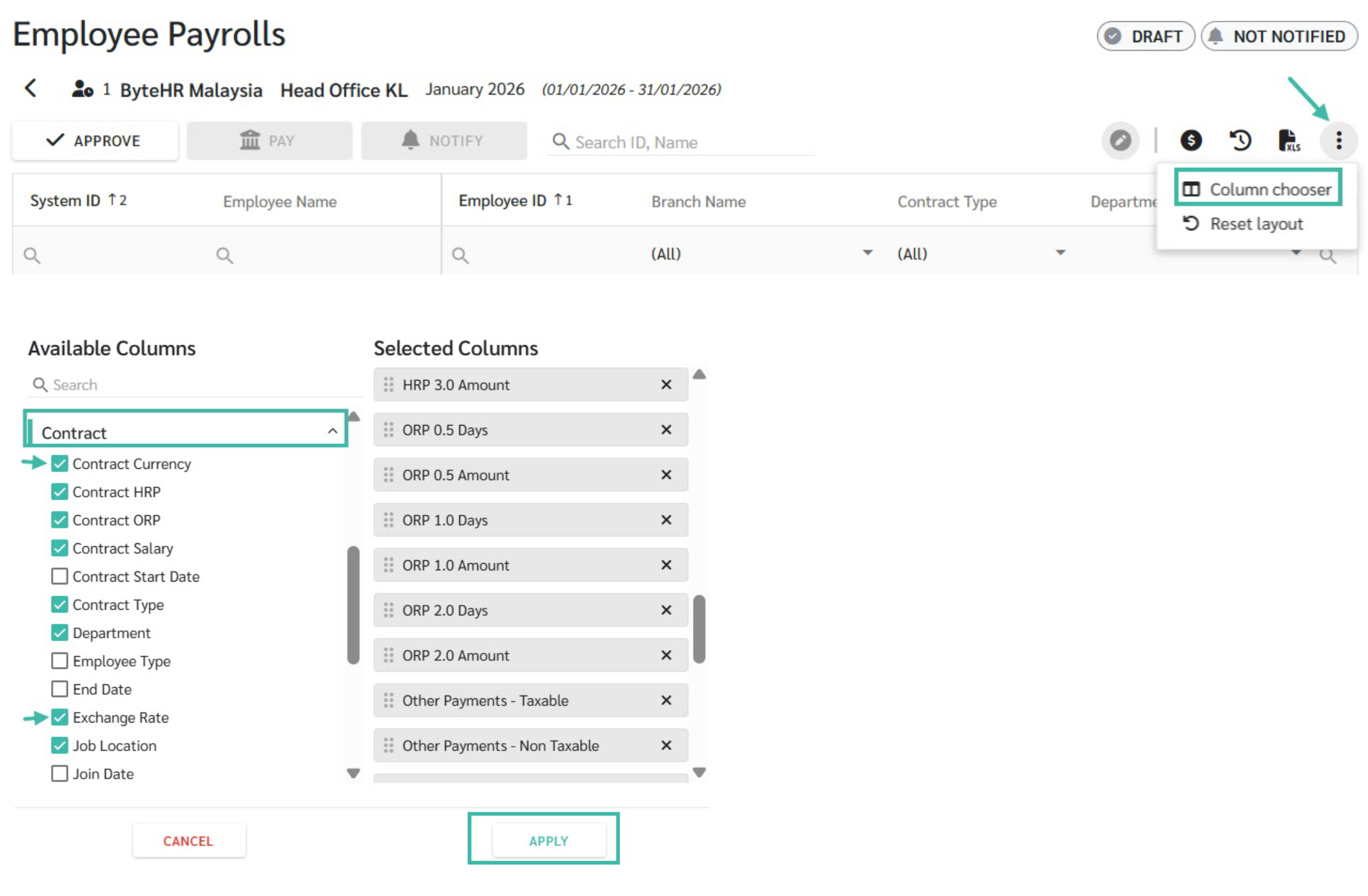
Enable the Exchange Rate Column in Employee Payroll Information via Column Chooser.
If the exchange rate changes in a future payroll month, update it under Preferences -> Employees -> Currencies before generating the Payroll.
Example:
Currency: USD
Exchange Rate: 3.94 MYR
Employee Contract:
Payment Type: Monthly
Currency: USD
Basic Salary: 10,000.00
Work Days/Month: 26 days
Work Hours/Day: 8 hours
Overtime Rate HRP: 48.08
Fixed Payment: Travel Allowance: 350.00
Fixed Deduction: Parking Fee: 150.00
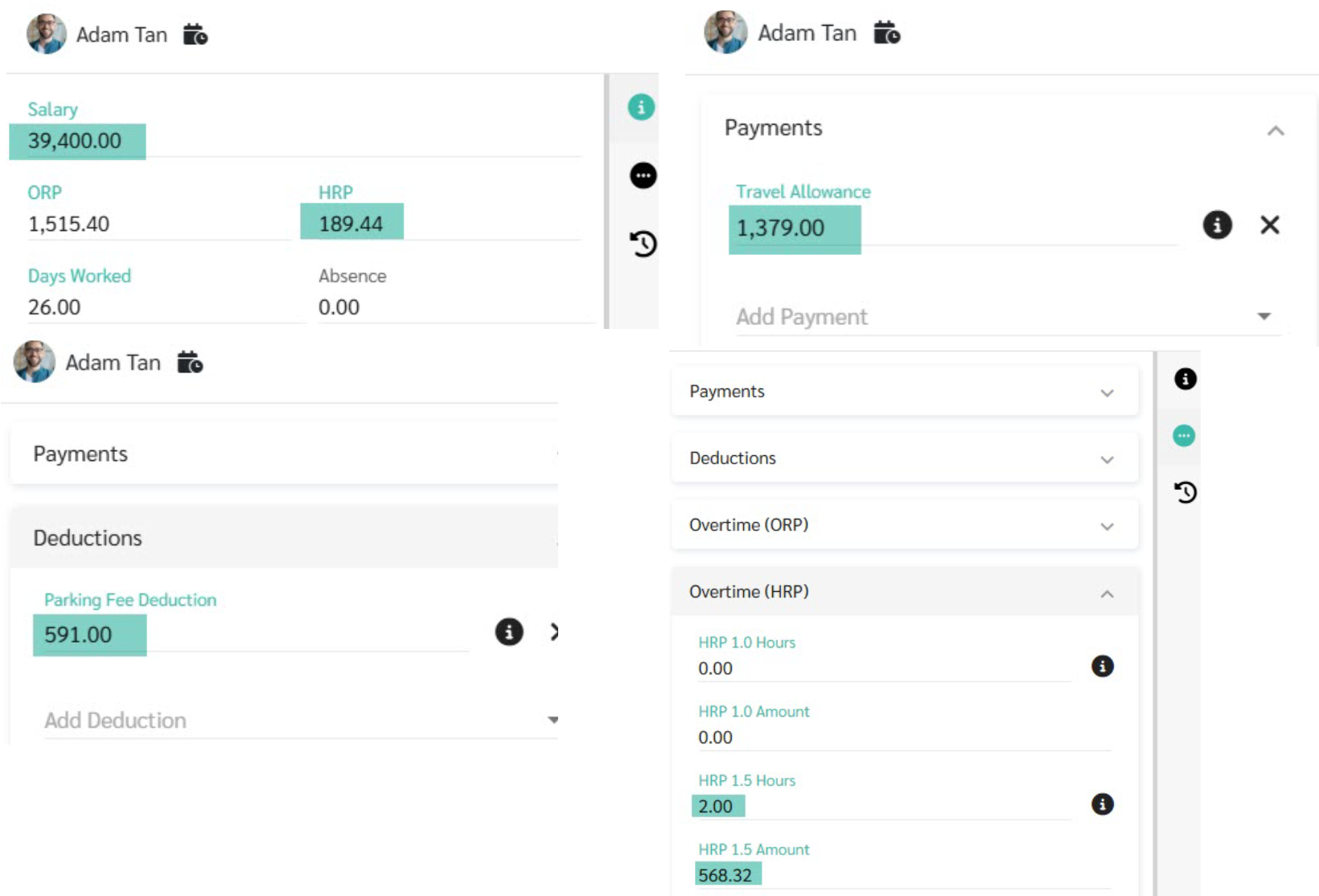
In the Payroll, the Pay details will be shown as below:
ComponentCalculationAmount (MYR) | ||
Basic Salary | 10,000 x 3.94 | 39,400.00 |
Hourly Rate Pay (HRP) | 10,000/26/8= 48.08 X 3.94 | 189.44 |
Travel Allowance (Fixed Payment) | 350 x 3.94 | 1,379.00 |
Parking Fee (Fixed Deduction) | 150 x 3.94 | 591.00 |
Overtime HRP 1.5 | 189.44 X 1.5 X 2 Hours | 568.32 |

Note:
When calculating payroll, if the employment contract selects a foreign currency, the details will be different. The system will convert fixed payments, fixed deductions, and overtime rates to MYR using the specified exchange rate.