Read KPI Review articles in order
Once everything is ready, Admins or Managers can change the review status to In-Process.
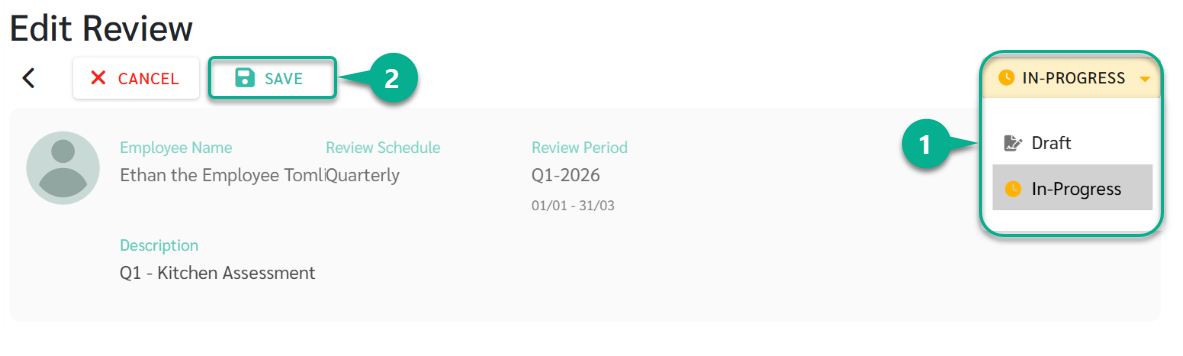
When the status changes to In-Process:
The KPI scoring process officially begins
The system sends email notifications to all assigned reviewers, inviting them to submit KPI scores according to their roles
After the review enters In-Process status:
Reviewers can start scoring KPIs
Core evaluation structures, such as KPIs and weightage, can no longer be freely edited as in Draft status
Admins or Managers can change the review status to In-Process to officially start KPI scoring.
When the status is changed to In-Process:
The scoring phase begins
The system sends email notifications to all assigned reviewers, inviting them to submit KPI scores according to their roles
After the review enters In-Process status:
Reviewers can start scoring KPIs
Core evaluation structures, such as KPIs and weightage, can no longer be freely edited as in Draft status
The Scoring Review page is used to score employee KPIs while the review is in In-Process status.
Reviewers can submit scores, add remarks, and attach supporting evidence based on their assigned permissions.
Go to Reviews > Score Reviews
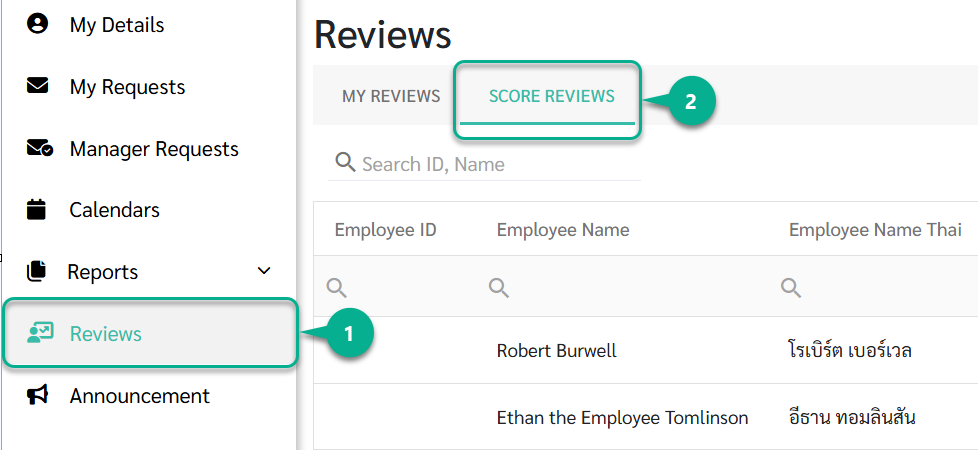
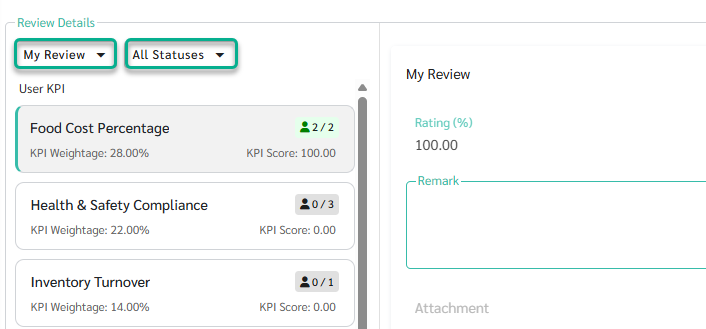
When a KPI is selected, the system displays its details in the My Review section.
Reviewers can:
Enter KPI scores based on the configured rating type
User KPI
User KPIs require reviewers to manually enter scores.
Scores can be given using the configured rating type, such as Percent, Level, Number, or Pass / Fail, along with remarks and file attachments if needed.
System KPI
System KPIs are automatically calculated by the system using existing system data, such as work activity or behavior records.
Reviewers can click Recalculate to fetch the latest data and recalculate the KPI score.
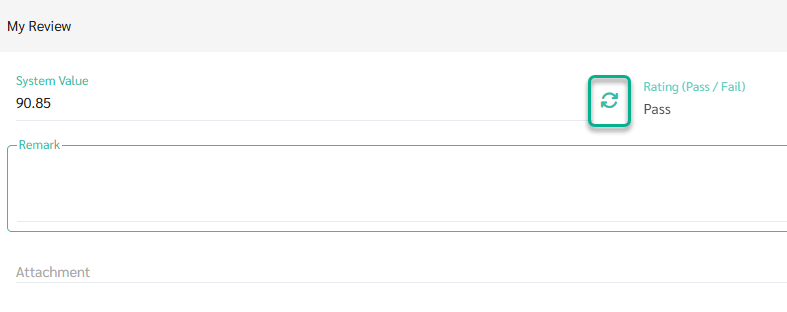
Add Remarks to explain the reasoning behind the score
Attach supporting files or documents (Attachments)
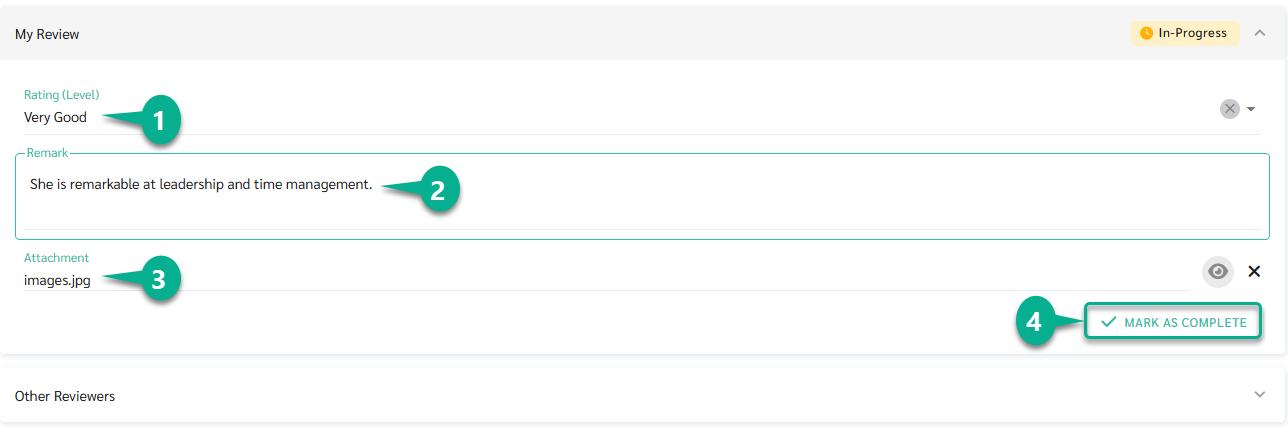
After completing the evaluation:
Click Mark as Complete to confirm the KPI score
Click Save to save the scoring result
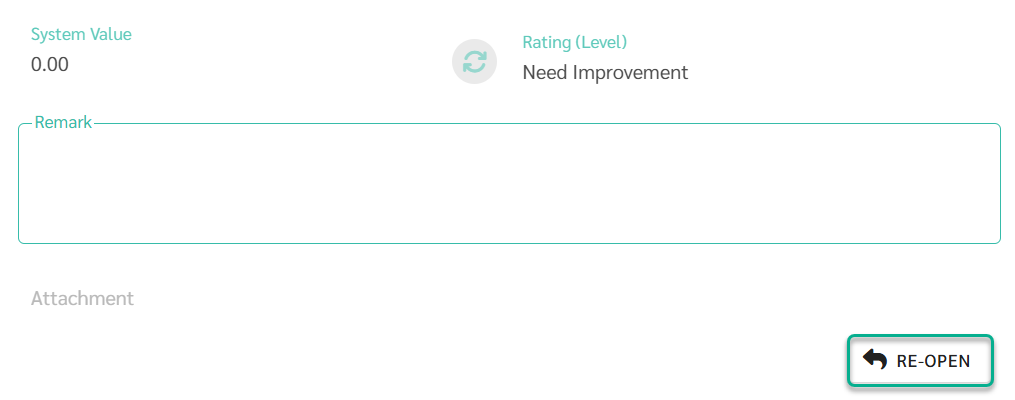
After scoring a KPI, reviewers can click Re-open to edit the score again.
Re-opening a KPI is allowed only while the employee’s review status is still In-Process.
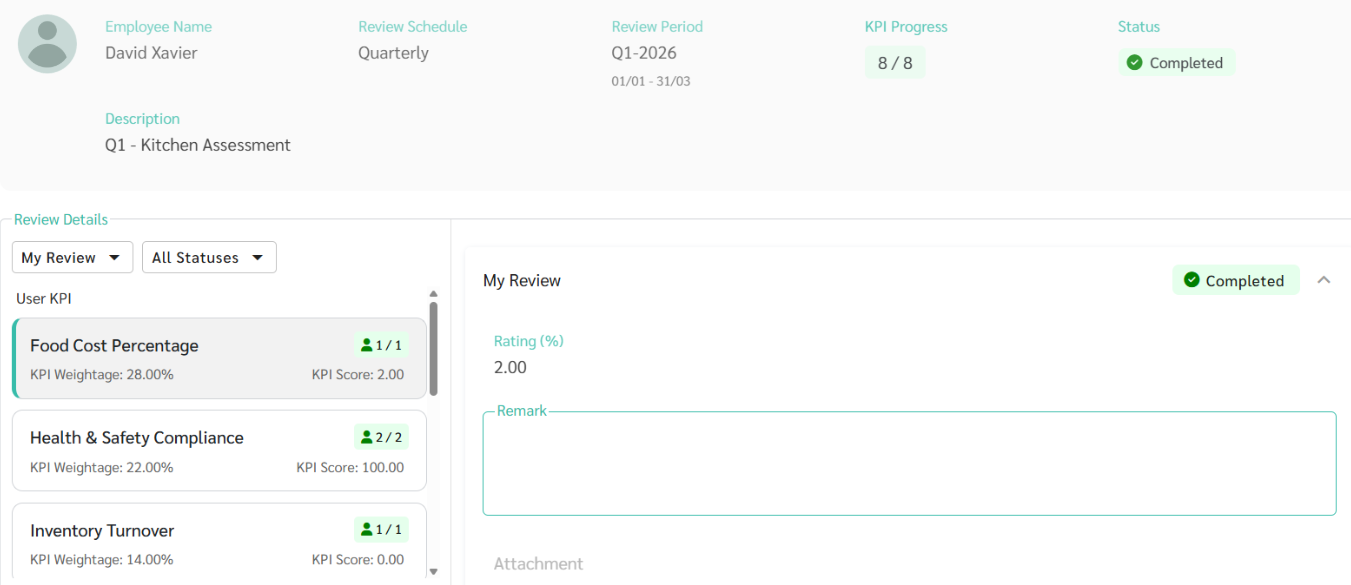
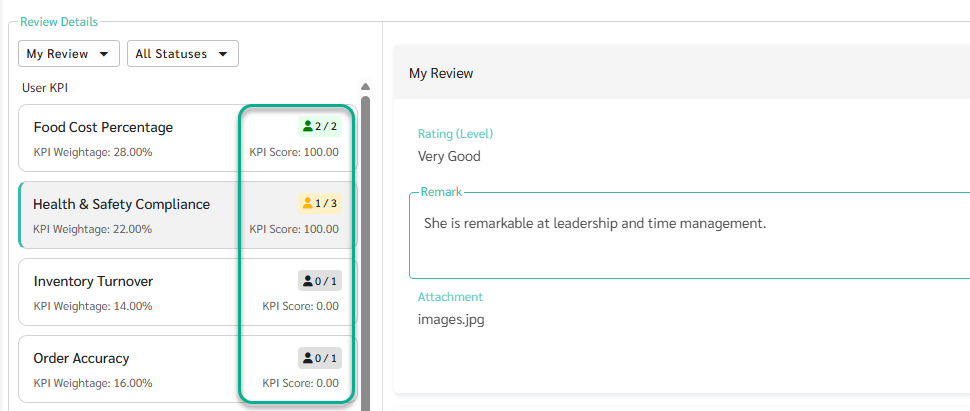
In the KPI list on the left-hand side, the system displays reviewer progress using color indicators:
Gray – No reviewer has started scoring
Yellow – Scoring has started but is not yet completed by all reviewers
Green – All reviewers have completed scoring (Completed)
A numeric indicator such as 1 / 3 means 1 out of 3 reviewers have completed scoring for that KPI.
Reviewer (Peer and Self)
Can see and score only the KPIs assigned to them
Can add remarks and attachments as part of the evaluation
Manager
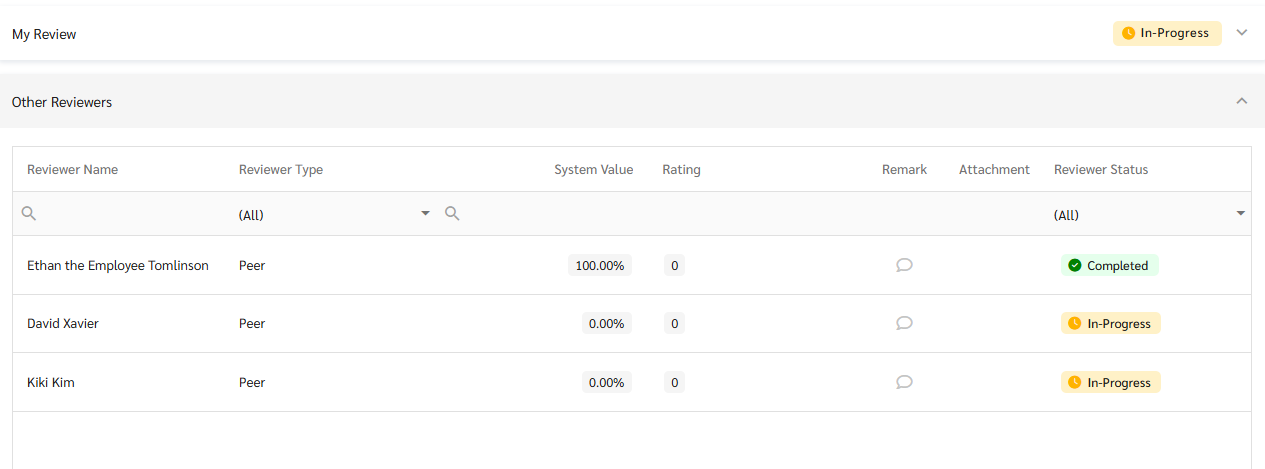
Managers have a broader view and can:
Score KPIs they are responsible for
View all KPIs for the employee within the same review round
View scores and remarks from other reviewers via Other Reviews
Filters help reviewers and managers focus on relevant KPIs or switch between detailed and overall views.
Status Filter
All Statuses – Show all KPIs
Pending – Show KPIs with incomplete scoring
Completed – Show KPIs with completed scoring
Reviewer Filter
All Reviews – Show all KPIs in the review
My Reviews – Show only KPIs assigned to the current user
During In-Process
Admins and Managers can monitor scoring progress and:
Check which KPIs have already been scored
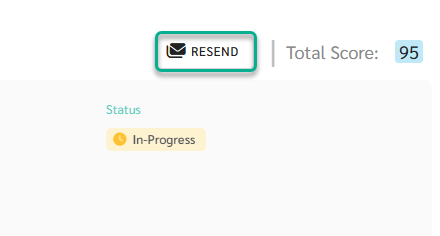
Click Resend to send reminder emails to reviewers who have not completed scoring
When Scoring Is Completed
When all reviewers have completed scoring for all KPIs:
The system automatically changes the employee’s review status to Completed
All scores are locked
KPIs can no longer be Re-opened or edited