💬 Note
Admin can send an Onboarding Form to collect personal details from New Joiners.
Once the form is completed, the submitted personal information will be added to the system with the status Applicant.
The admin must invite the new joiner as User in order for them to access the system.
See the section on adding users at this LINK.
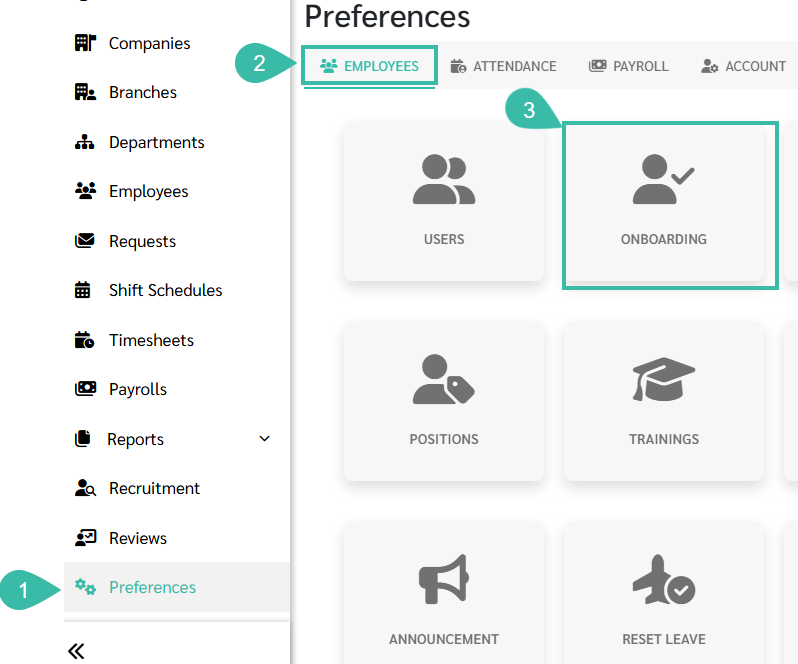
Navigate to Preferences tab.
Select Employees option.
Click Onboarding.
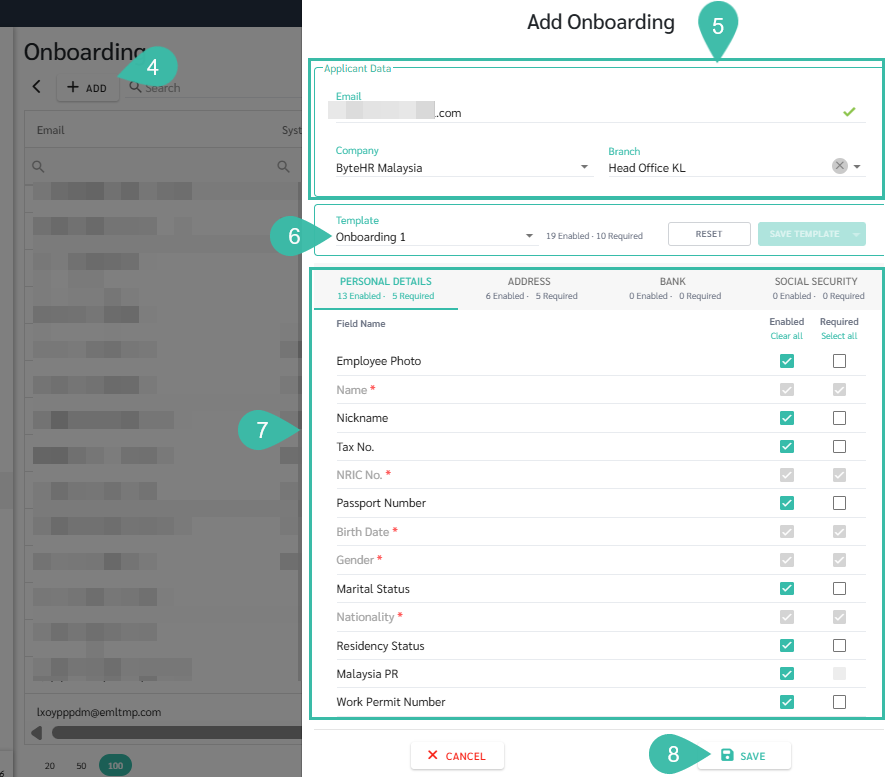
Click +Add.
Enter the New Joiner details:
Company
Branch
Select an Onboarding template.
Fields are organised according to employee details sections in the system.
Click Save.
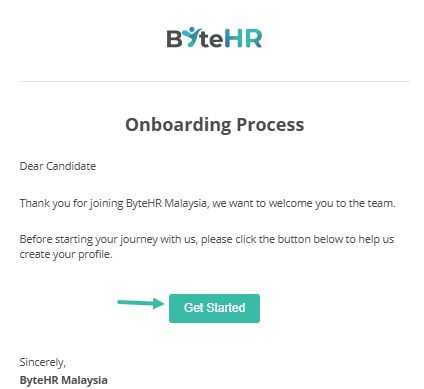
The system will send the Onboarding Form via email to the New Joiners. Admin can view the submission status and completed forms in Onboarding page.
Note : The Onboarding Form link is valid for 14 days from the date it is sent.
When the New Joiner receives the email, they must click "Get Started" to complete the Onboarding Form.
Invite Status
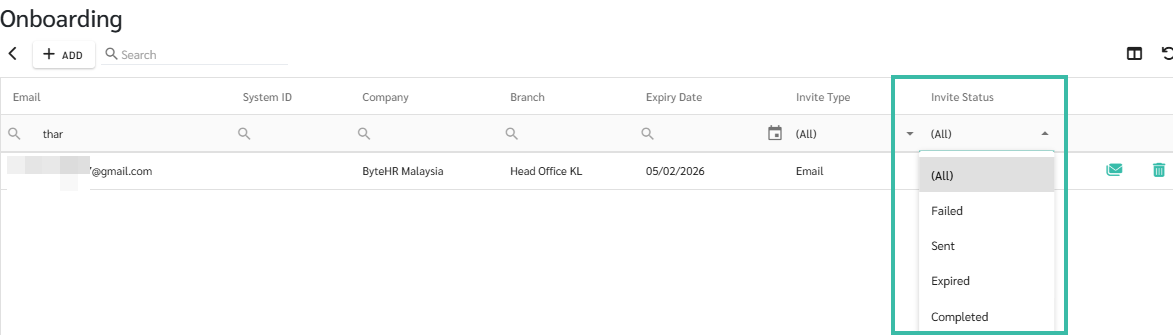
Invite Status Meaning | |
Failed | The email failed to send. An error message is displayed indicating the reason for the failure. |
Sent | The email was sent successfully. |
Expired | The Onboarding Form link has expired. The employee can no longer access the form. The admin should resend the form by clicking the Resend (Mail Icon). |
Completed | The employee has successfully submitted the Onboarding Form, and the details filled in have been saved in the system. |
📃NOTE
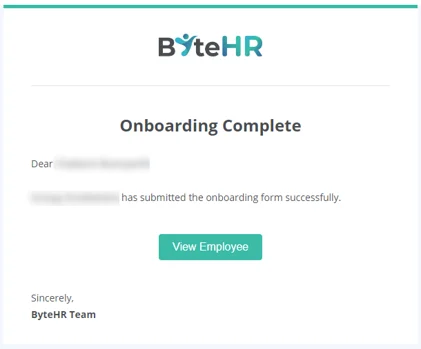
Once the Onboarding Form is completed, the system will notify the admin who sent the Onboarding Form that the Onboarding is Complete.
The pricing for the Onboarding feature depends on the number of employees in your package and will prorate according to your billing cycle.
