How to Generate Payroll by Extracting Data from Approved Timesheet
This method requires a Shift Schedule and employees to sign in/out. The system will retrieve data of Days Worked , Absences, late arrivals/early departures, unpaid leave days, and overtime from the Timesheet to generate Payroll. The system will also calculate the Allowance rules and Deduction rules, including late deductions based on clock-in and clock-out times. After payroll is processed, the total deduction amount will be displayed in Payroll.
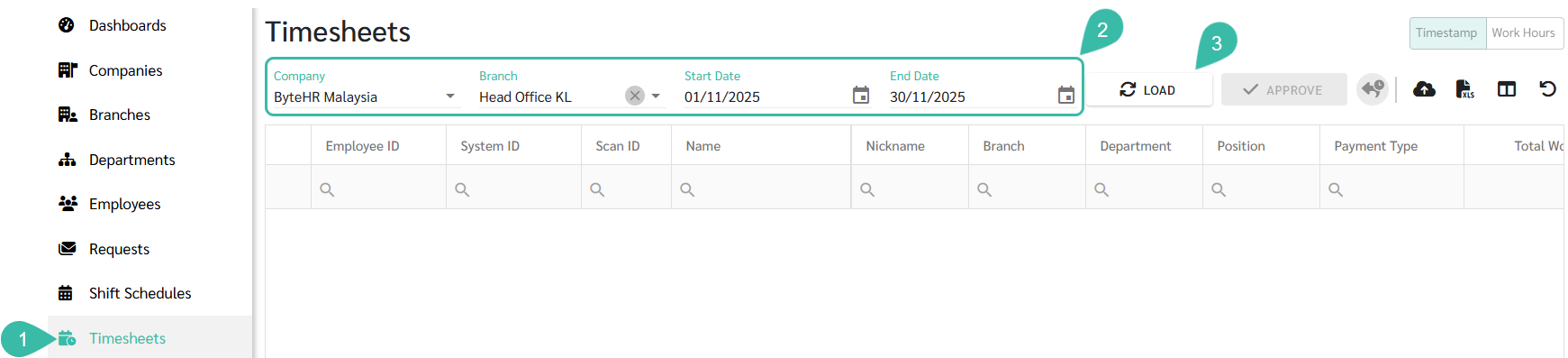
Go to Timesheets
Select Company, Branch, Start Date, and End Date.
Click on Load.
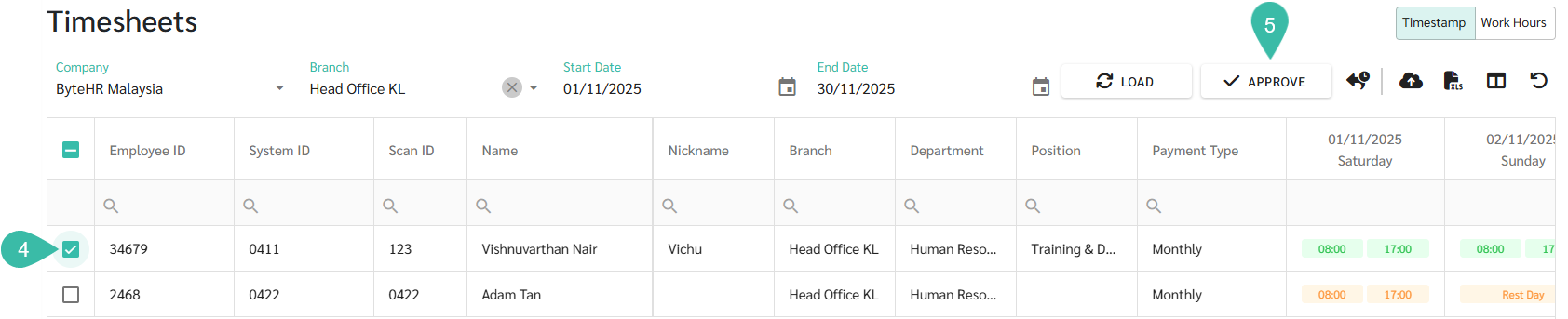
Select the name of the employee whose timesheet data you want to approve for payroll processing.
Click Approve.
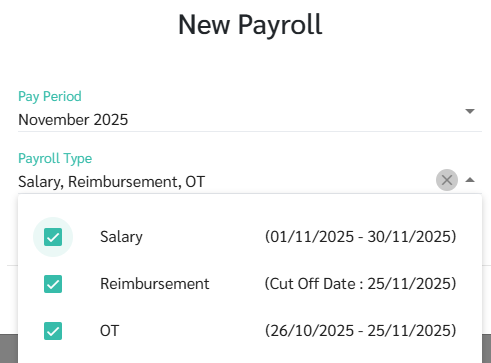
Select the pay period. The system will automatically display the payroll cycle if applicable.
You can choose the Payroll Type as follows:
Salary
Reimbursement request
Overtime pay (OT)
If you want the system to include the fixed Payments/Deductions from the employee's employment contract in your Payroll, tick the Include Fixed Payments and Benefits box.
Click Generate. After the Timesheets have been approved, you can go to the Payrolls page to view or edit Payroll details.
Once your timesheet has been approved, you will no longer be able to edit the information in the Timesheet.
The system will display the status of the approved Timesheets as follows:
Approved Salary and Overtime / Approved Overtime Only
The Timesheet will be closed for all editing and any unapproved Overtime requests will not be included in the Payroll calculation. If an employee clocks in and out after the Timesheet has been approved, the system will not update the clock in and out information into the Timesheet.

Approved only salary, but not overtime.
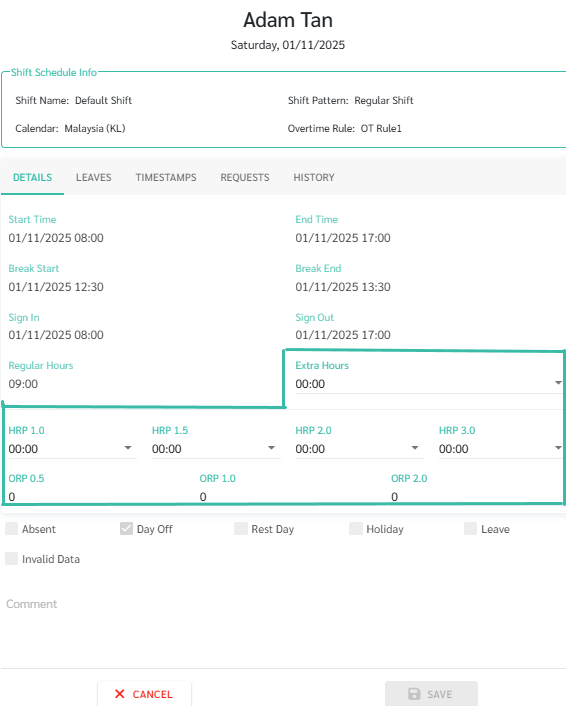
The Timesheet will be closed for editing except for Overtime fields, and you can still approve Overtime requests for days that are not cut off for overtime.

Note
If a Timesheet has already been approved but a request for Overtime or Leave is retroactively approved, the system will not include the request in the Payroll calculation or display it in the Timesheet. In this case, the admin must remove the employee from the Payroll block and process it again.
If the Timesheet has already been approved, the information cannot be edited. If you want to edit an approved Timesheet, the admin must delete the Payroll block, then you can edit the Timesheet.
Calculation of Allowance rules and Deduction rules such as diligence allowance or late deduction must be made by approving the Timesheet only. If using the method of generating Payroll from the employment contract, the system will not calculate the rules.
If employees clock in and out after the Timesheet has been approved, the system will not update the clock in and out data into the Timesheet.
📝 Note
To preview projected employee income, follow the steps below:
Go to the Payroll tab and click New Payroll to create a Payroll Block.
Select the desired Payroll Block to view or edit the payroll details.
The system will display the payroll details for each employee on the Employee Payrolls page. Export the payrolls to Excel and compare the system-calculated amounts with your manual calculations before finalizing payroll.
Once you have reviewed the projected employee income, delete the Payroll Block without proceeding with the actual payroll processing.
