The Timesheet has two Views:
Timestamp View
Work Hours View
The general symbols displayed in both Timesheet views have the following meanings:
SymbolMeaning | |
  | Yellow Font Indicates Weekly Holidays as specified in the Shift Schedule. |
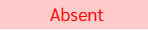 | Indicates there is no Clock-In or Clock-Out records for the day. |
 | Indicates that the employee has not Clocked in for the Shift of the current day yet. |
 | Indicates that the employee has not Clocked Out for the Shift of current Day yet. |
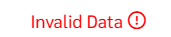 | Indicates missing Clock-In or Clock-Out records (Only One Timestamp recorded). |
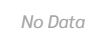 | Indicates no Clock-In/Out data as the date is in the future. |
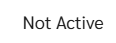 | Indicates the employee's contract has ended. |
 | Indicates that the employee's employment start date is in the future. |
 | The Red colour indicates the employee Clocked-In Late after the Scheduled Shift start time (Timestamp View) |
 | The Red colour Indicates the employee Clocked-Out earlier than scheduled Shift end time (Timestamp View). |
 | Indicates a Public Holiday as specified in the Calendar Settings. |
 | Indicates the employee has taken Annual Leave. |
 | Indicates that the Timesheet has been approved for Payroll processing. |
 | Indicates that only some items like Salary and Reimbursement are approved while others like Overtime is pending for approval. |
Work Hours View
The Work Hours View also provides additional details regarding the employee's regular hours, extra hours and approved overtime as shown in the table below:
SymbolMeaning | |
 | Shows the Regular working hours. |
 | Shows Extra Worked hours in addition to Regular Working Hours. OT Request is not yet to Approved. |
 | Shows the Regular Working Hours together with the Approved OT Hours and OT Rate. |
