
💬 Note
To submit Overtime Requests, Overtime Rules must be properly configured according to company regulations.
For example, Overtime on a regular weekday may be paid at 1.5 times the Hourly Rate Pay.
For employees assigned to Shift Schedule, the Shift Schedule Settings must be configured to allow employees to submit Overtime Requests.
Refer to the article on setting up Shift Schedule at this LINK.
How to Submit an Overtime Request
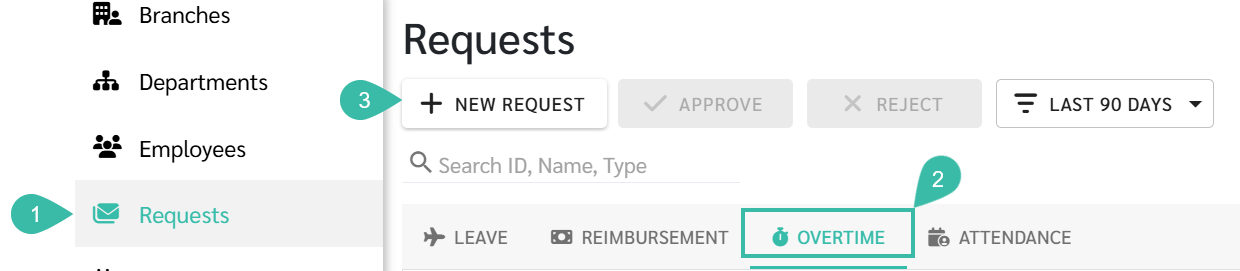
Go to Requests tab.
Select Overtime.
Click + New Request.
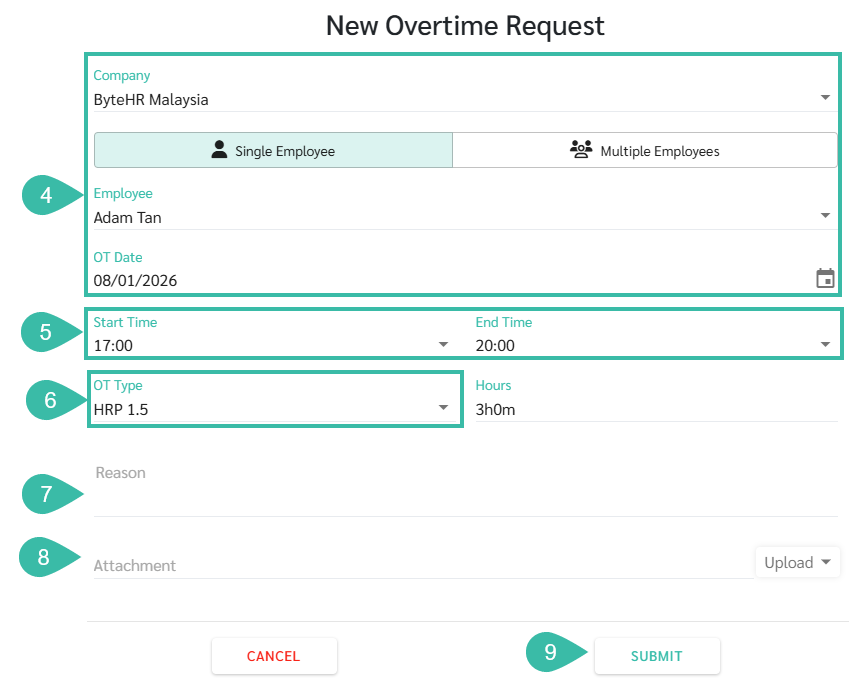
Select Company, Employee, and OT Date
Enter the Start Time and End Time.
Select the Overtime Type.
Weekdays: The system automatically displays the applicable OT Type.
Rest Day or Public Holidays: The system displays available Overtime Type options based on configured Overtime Rules.
State the reason for requesting Overtime.
Attach supporting documents by clicking Upload.
***Up to five documents may be attached (Maximum file size: 7MB; Maximum image size: 10MB).***
Click Submit.
📃 Note
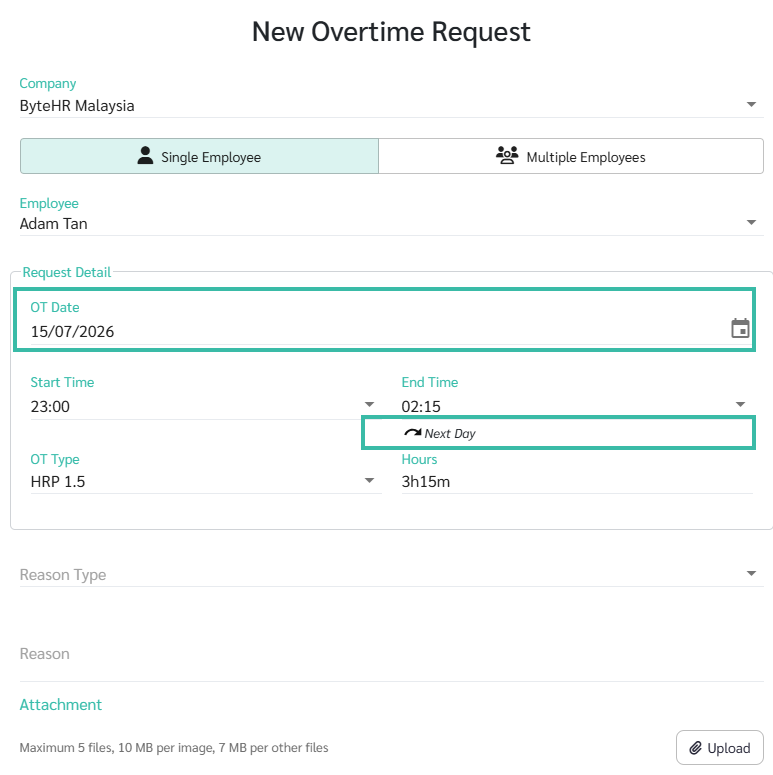
When an Overtime request spans across different days, the system will display:
OT Date: The actual date the Overtime occurred.
End Time: The system shows Next Day.
It is not possible to prevent employees from submitting retroactive Overtime requests.
🏷️ Case
The system calculates Overtime Hours based on the employee's Shift configuration:
Regular Shift Schedule
Overtime starts counting after the scheduled Shift End Time, unless Overtime breaks are deducted (Deduct OT Break).
Flexible Shift Schedule
Overtime starts counting after the total required working hours (including breaks) have been completed.
Example:
Regular Shift Schedule:
Shift TimeTimestampOvertime Request (Normal Working Day)Timesheet | |||
Start Time: 09:00 End Time: 17:00 | Sign In: 08;22 Sign Out: 19:45 | Start Time: 17;00 End Time: 19:00 Overtime Type: HRP 1.5 Deduct OT Break: 00:30 | OT Hours:1:30 (Calculate OT from 17:30 to 19:00) |
Flexible shift schedule:
Shift TimeTimestamp Overtime Request (Normal Working Day) Timesheet | |||
Shift Hours/Day (Include Break): 09:00 | Sign In: 08:22 Sign Out: 19:45 | Start Time: 16:30 End Time: 19:00 OT Type: HRP 1.5 Deduct OT Break: 00:30 | OT Hours: 1:38 (calculate OT from 17:22 to 19:00) |
Flexible shift schedule:
Shift TimeTimestampOvertime Request (Rest Day)Timesheet | |||
Shift Hours/Day (Include Break): 09:00 | Sign In: 14:30 Sign Out: 20:30 | Start Time: 14:00 End Time: 17:00 OT Type: ORP 0.5 Deduct OT Break: 00:30 | OT Hours: 02:30 (calculate OT from 14:30 - 17:00) |
Shift Hours/Day (Include Break): 09:00 | Sign In: 17:00 Sign Out: 20:00 | Start Time: 17:00 End Time: 20:30 OT Type: ORP 0.5 Deduct OT Break: 00:30 | OT Hours: 02:30 (calculate OT from 17:00- 20:00) |
