
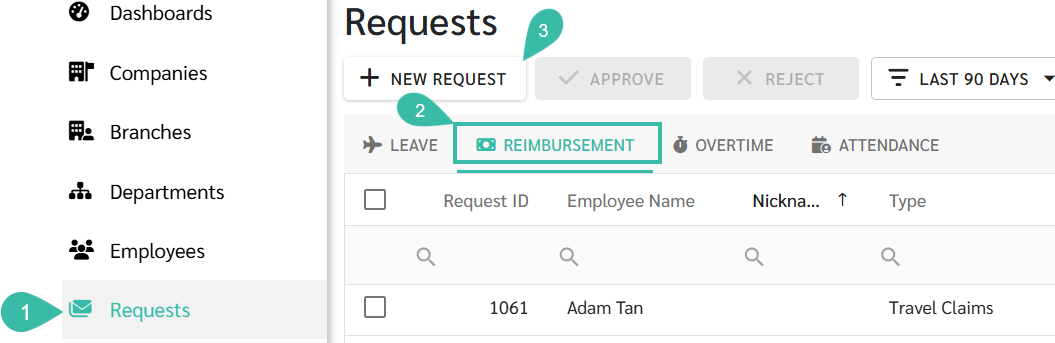
Go to Requests -> Select Reimbursement -> Click +New Request -> Select Single Payment -> Fill in the details -> Submit Request

💬 Note
Before submitting a Reimbursement Request, ensure that:
The Payment Type is enabled at the branch the employees belong to.
The Submit Request checkbox must be ticked
Only after completing these steps can a Reimbursement Request be submitted.
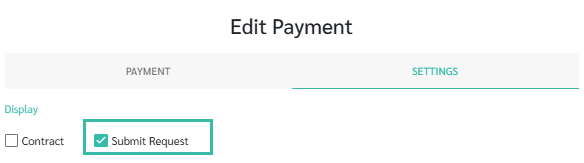
How to Submit Reimbursement Request for a Single Payment
Navigate to Requests tab.
Select Reimbursement tab.
Click + New Request.
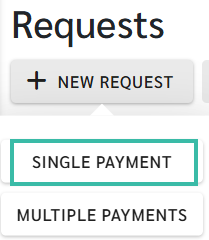
Select Single Payment.
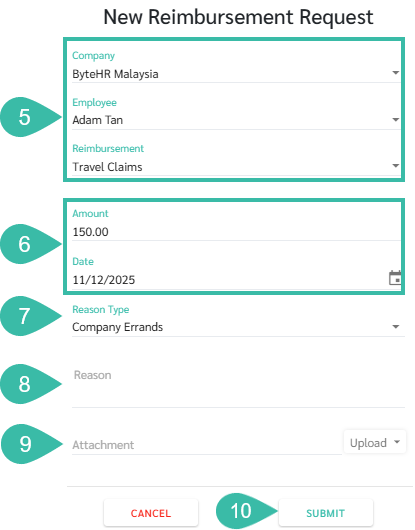
Select the Company, Employee, Reimbursement Type.
Enter the reimbursement amount and the date the payment was made.
You may submit more than one Reimbursement request per day (based on the request date).
Select the Reason Type.
Enter the reason.
Attach supporting documents by clicking Upload
Up to five files can be attached.
File size must not exceed 7MB
Images file up to 10MB.
Click Submit.
🏷️ Case
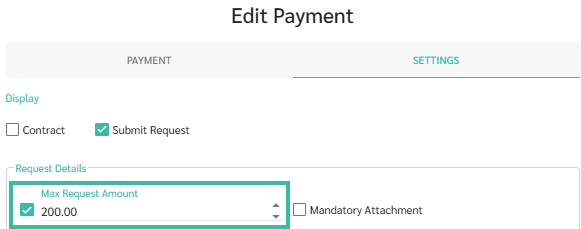
If a Max Request Amount is configured in the Payment Settings, per Reimbursement requests exceeding the amount cannot be submitted.
Employees may submit more than one Reimbursement Request per day.
🚩 Note: Reimbursement Request and Payroll Processing
Only Reimbursement Requests with a Request date within the Payroll processing period and an Approved Reimbursement Request status will be included as Payments for that Pay period.
If a Reimbursement Request is Approved after Payroll has been processed, it will be included in the next Payroll cycle.