
Assigning Employee to Edit Shift Time
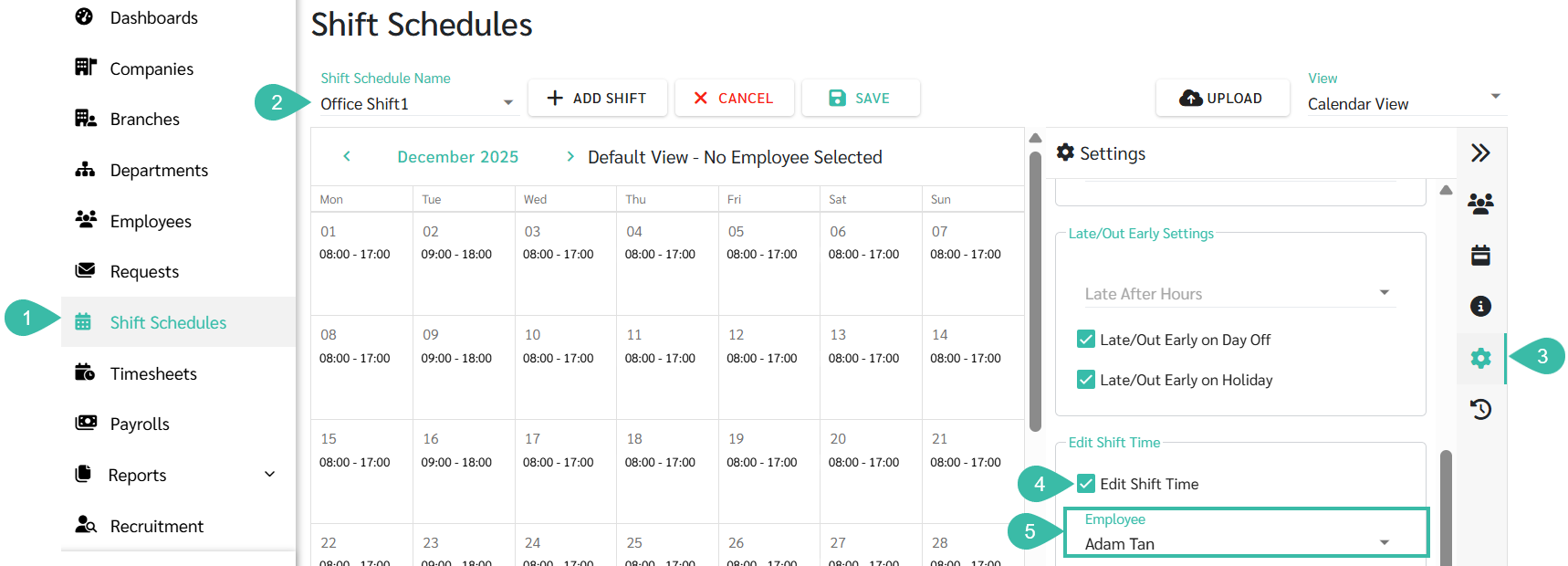
Navigate to Shift Schedule.
Select the desired Shift Schedule Name.
Click the Settings (gear icon) on the right-side panel.
Tick the checkbox to enable the Edit Shift Time option.
Select the employee's name. The selected employee will be able to edit Shift Time/Shift Patterns for this Shift Schedule.
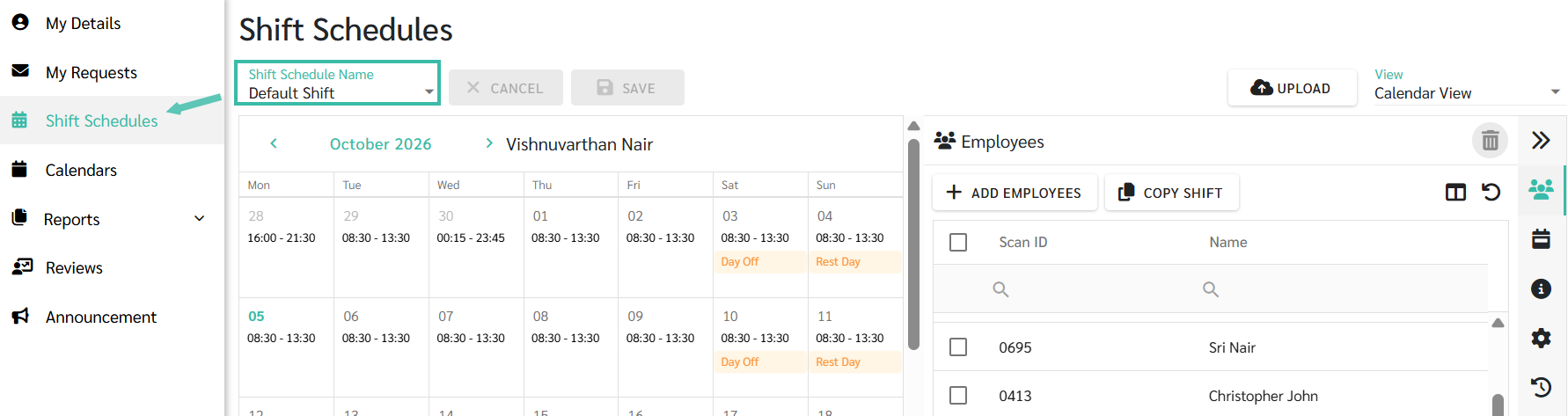
Shift Schedule View for Employees (Edit Shift Time)
When an employee is assigned as a Shift Schedule Admin/editor:
A Shift Schedule tab will appear on the employee's website view.
The employee will only see the Shift Schedules they are assigned to manage or edit.
See the section on Setting Shift Times and Weekly Days Off at this LINK
For information on creating Shift Patterns, please see the following LINK
An employee assigned to Edit Shift Time can perform the following actions:
Adjust Shift times.
Copy the Shift Schedule.
Upload shift schedule.
Add/Edit/Delete Shift Patterns.
Add New Employees to the Shift Schedule.
Remove employees from the Shift Schedule.
Upload new employees to the Shift Schedule.
📝 Note
Employees assigned to manage/edit Shift Schedules cannot perform the following actions:
Create a new Shift Schedule.
Edit Shift Schedule details.
Edit Shift Schedule settings.