
How to set Late After Hours and display Late/Out Early on Day Off and Holidays
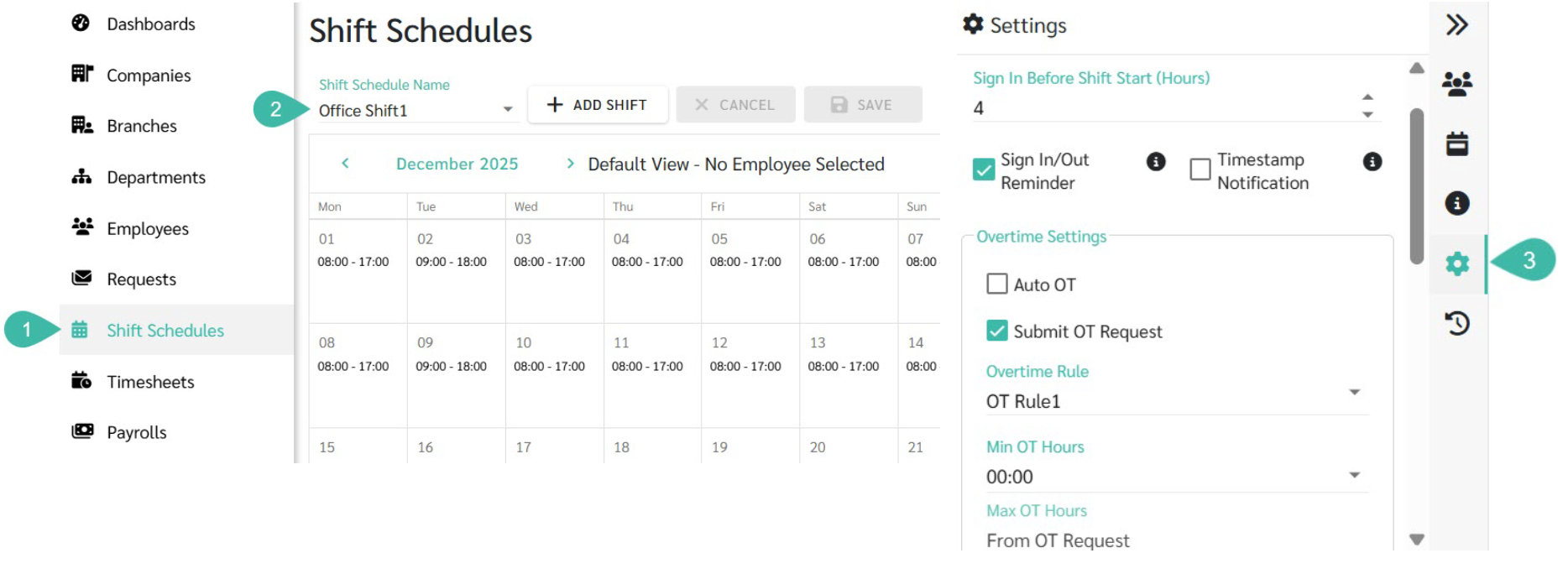
Go to Shift Schedules.
Select the Shift Schedule you want to configure.
Click the Settings on the right-side panel.
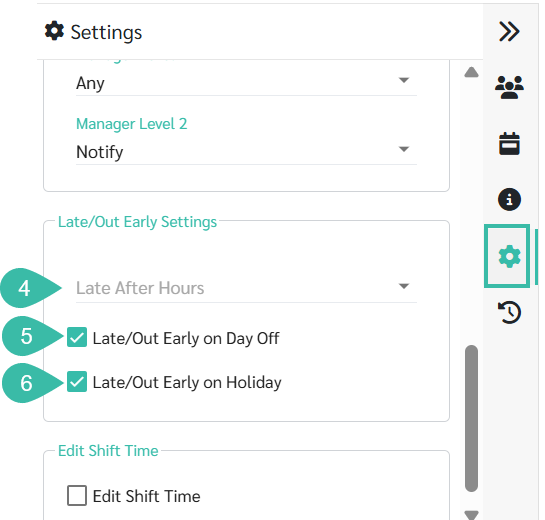
Under "Late/Out Early Settings", set the Late After Hours value to define how many minutes or hours after the scheduled start time the system will begin counting lateness.
Note: The system currently supports 15 minutes intervals by default. However, admin may configure other intervals (e.g. 10 minutes or 20 minutes) based on company policy.
Example 1
Late After Hours set to 00:15 (15 minutes)
Scheduled Shift start time = 08:00 AM.
Employee clocks in at 08:11 AM..
The system records 0 minutes of Lateness.
Example 2
Late After Hours set to 00:15 (15 minutes)
Scheduled Shift start time = 08:00 AM.
Employee clocks in at 08:17 AM.
The system records 2 minutes of Lateness.
Late/Out Early on Day Off: Admin can control whether Late or Out Early minutes are displayed for Day Off.
Tick the checkbox (Enable) ➜ The system will display the employee's Late/Out Early minutes on Day Off in the standard report.
Untick the checkbox (Disable) ➜ The system will not display employees' Late/Out Early minutes on Day Off.
Late/Out Early on Holidays: Admin can configure the display of Late/Out Early minutes on Public Holidays.
Tick the checkbox (Enable) ➜ The system will display the employee's late/Out Early minutes on Public holidays in the standard report.
Uncheck (Disable) ➜ The system will not display employees' Late/Out Early minutes on Public Holidays.

🗨️ Important Note
Changes made to past Shift Schedule settings will not retroactively update existing Timesheet data.
Admin must Regenerate the Timesheet for the new Settings to take effect.
These Settings apply to all employees assigned to the same Shift Schedule.