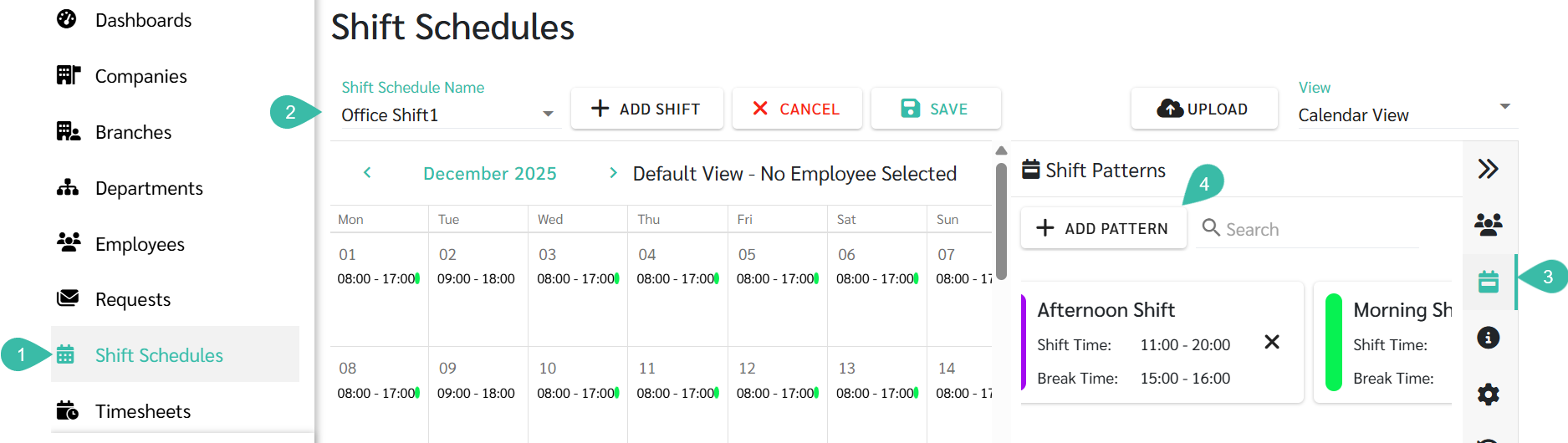
Navigate to the Shift Schedules tab.
Select the desired Shift Schedule Name to add the Shift Pattern.
Click on the Shift Pattern menu.
Click "+ Add Pattern" to add a Shift Pattern.
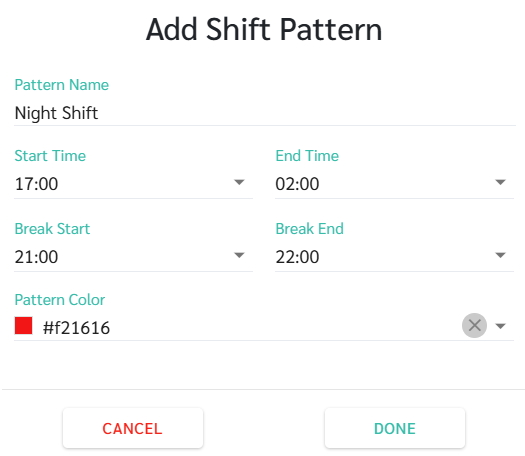
A pop-up window will open, prompting you to fill in the following information:
Pattern Name
Start time
End time
Break Start Time
Break End Time
Pattern Colour
Click Done.
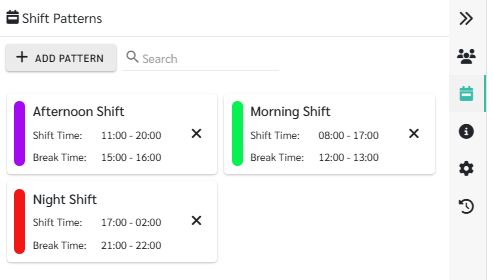
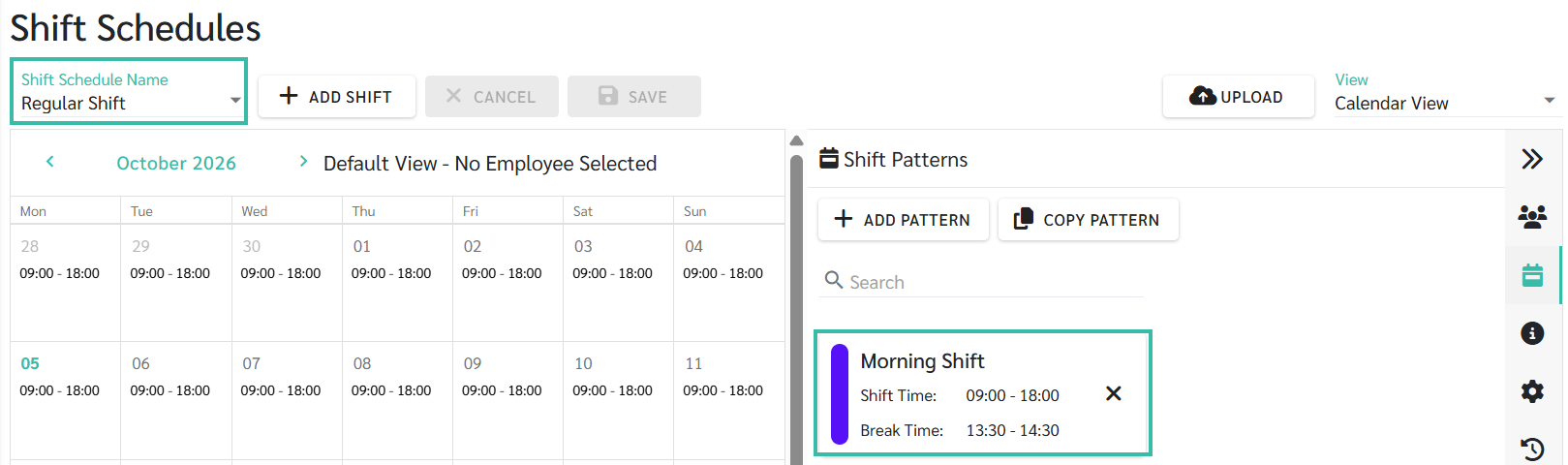
The created Shift Pattern will be displayed on the right-side panel.
📝 Note
Shift Patterns are displayed in alphabetical order (A-Z) and Numerical Order.
📢Important Note
The Shift Pattern names, start and end times, and break times cannot be the same as any existing Shift Patterns.
Example 1
If a Shift Pattern named "Morning" already exists, you cannot create another Shift Pattern with the same name.
Example 2
If a Shift Pattern has the following configuration:
Start Time: 08:00
End Time: 17:00
Break Time: 12:00 - 13:00
You cannot create another Shift Pattern with the same start time, end time, and break time combination.
Shift Pattern name cannot begin with the words "DAY OFF".
Once a Shift Pattern has been created, the admin can add it to the Shift Schedule in two ways:
Click and hold the desired Shift Pattern, then drag and drop it onto the date you want to change the Shift time on.
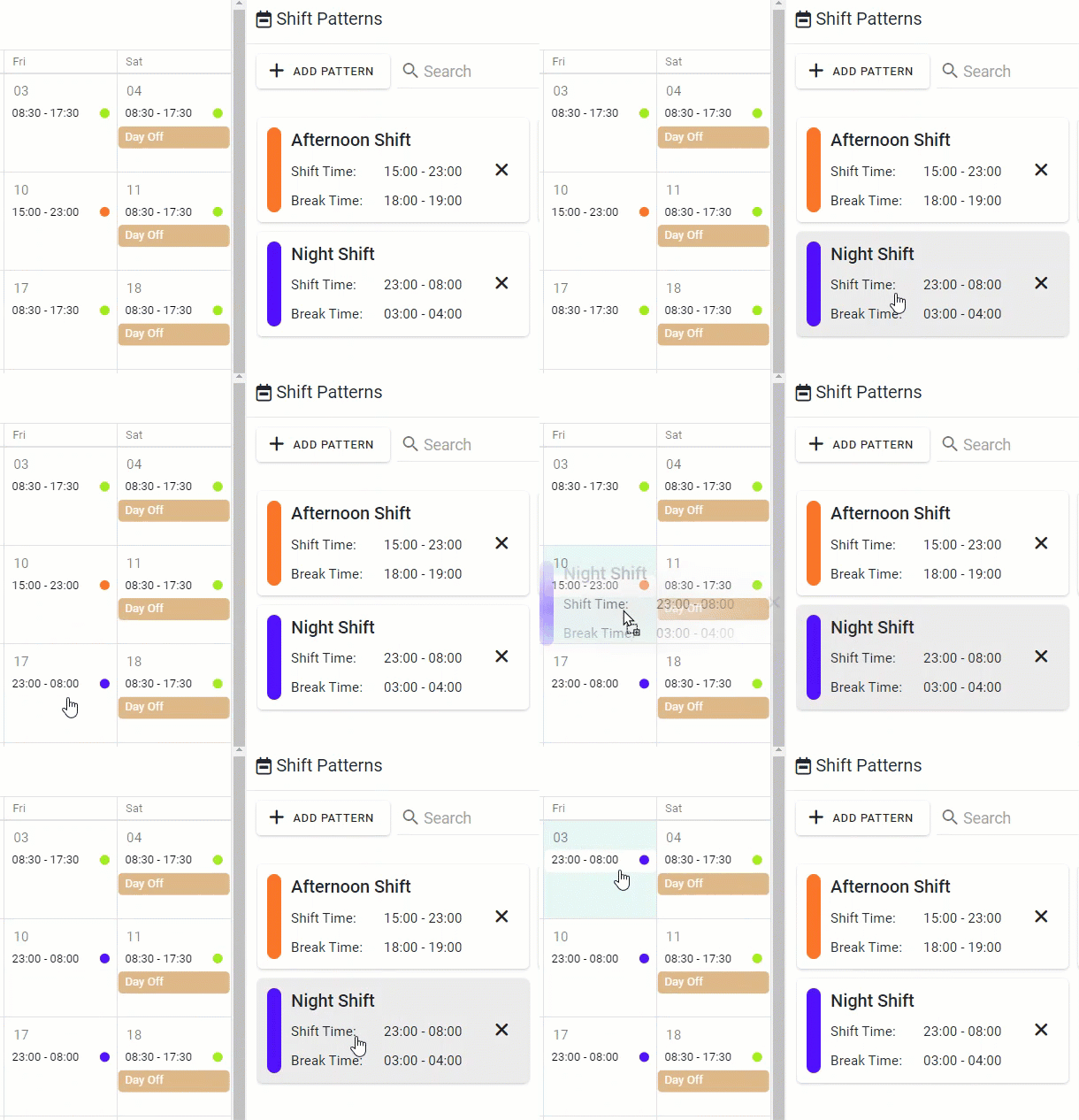
Click on the day of the Shift Schedule you want to change the Shift time, and select the desired Shift Pattern.
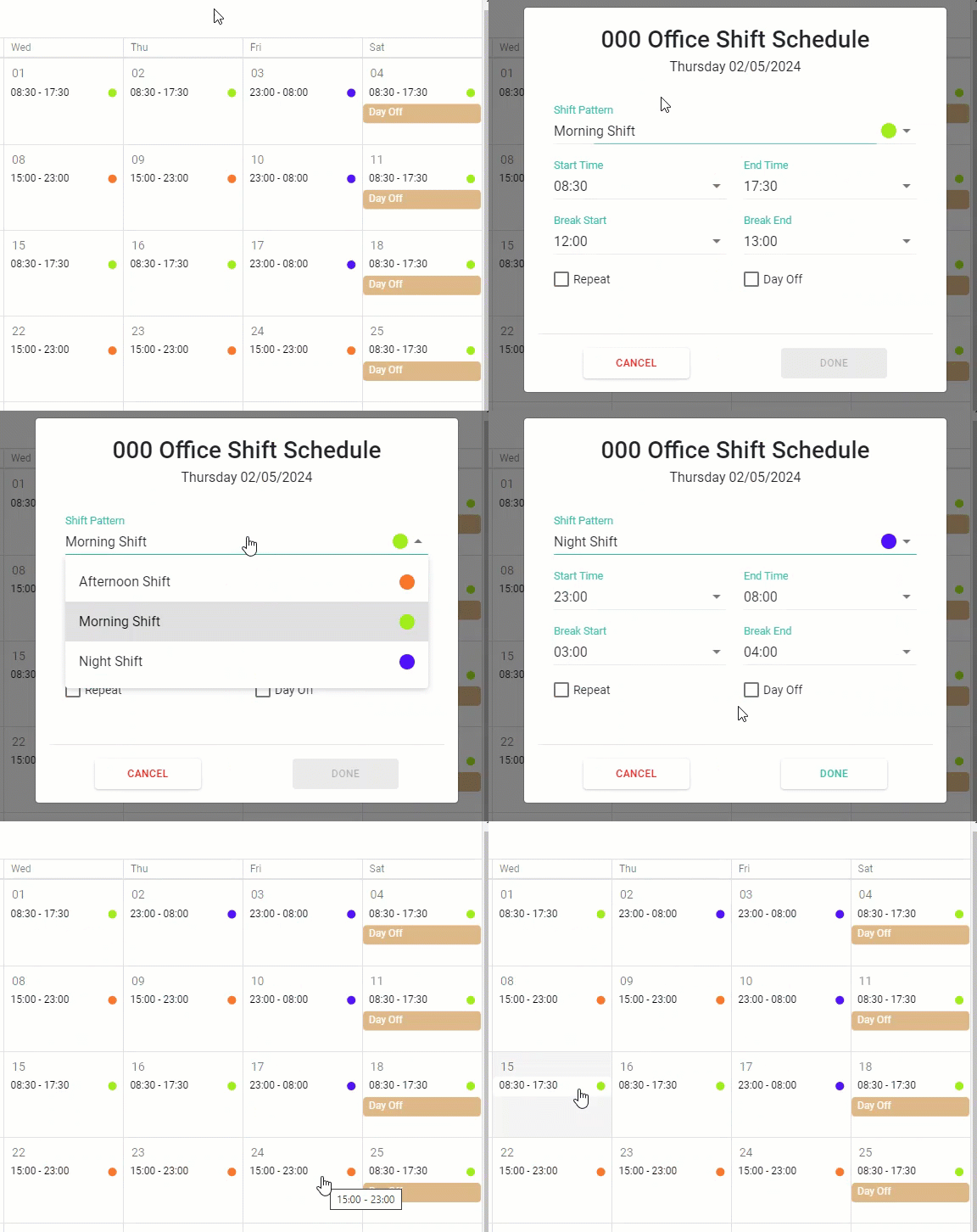
📝Note
Once the admin has successfully applied the Shift Patterns to the Shift Schedules, they can repeat the pattern, both daily and weekly, on other working days as usual.
📢 Important Note
The Shift Patterns does not have a box for marking weekly days off.
The administrator must manually check the box for marking weekly days off in the Shift Schedule according to the normal procedure.
In Shift Schedules, select a Shift Schedule that has Shift Patterns created.
Click Copy Pattern.
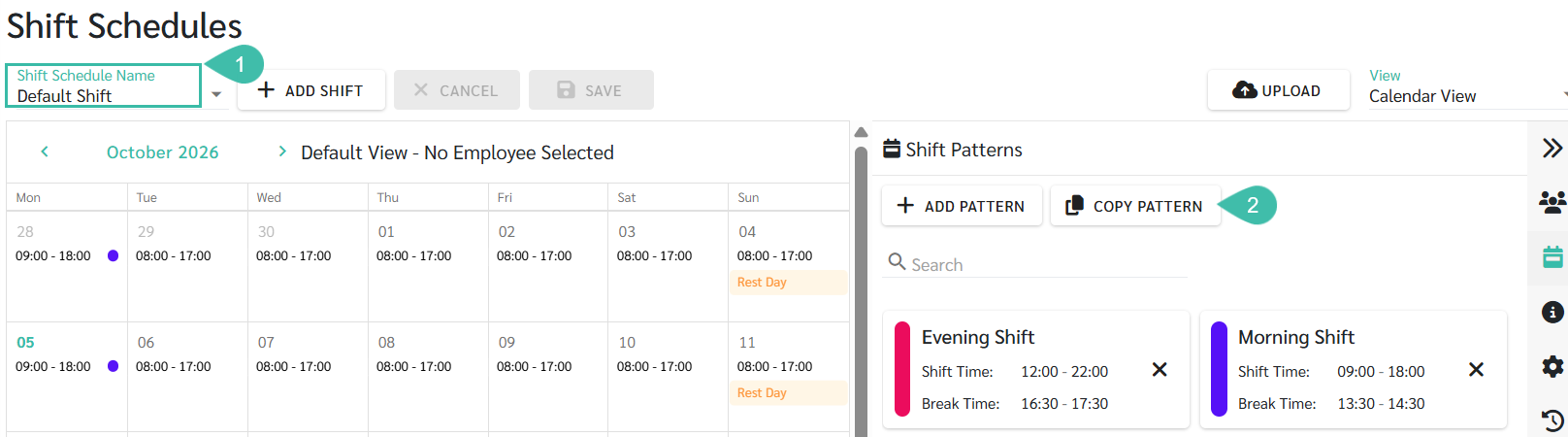
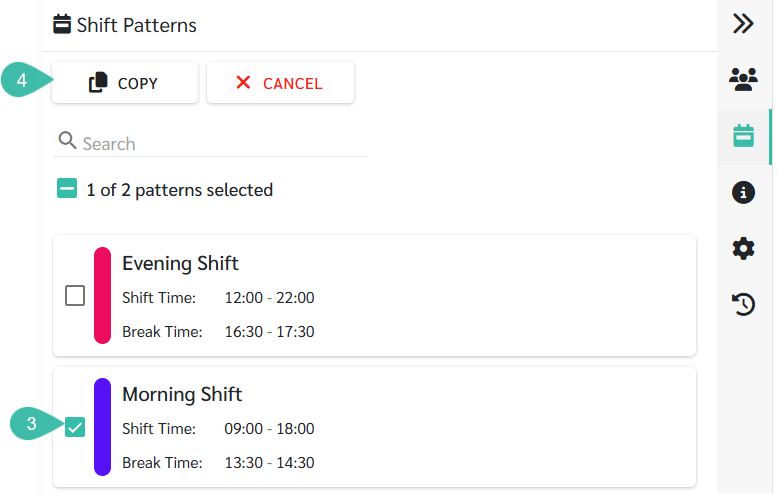
Select All Shift Patterns or choose the specific Shift Patterns you want to copy to other Shift Schedules.
Click Copy.
Select the existing Shift Schedule(s) where you want to copy the selected Shift Patterns. You can select multiple Shift Schedules.
Click Copy to.
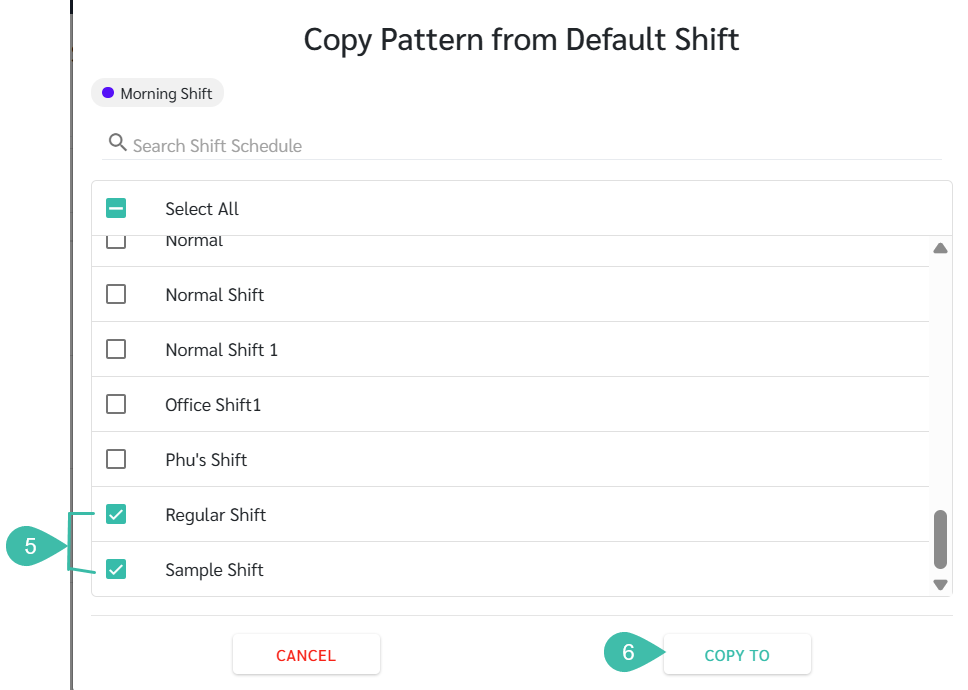
The selected Shift Patterns will now be copied and reflected in the chosen Shift Schedule(s).
📝 Note
Duplicate Shift Patterns will be validated automatically by displaying “Duplicate Pattern”.
A history entry will be recorded for copied Shift Patterns in the selected Shift Schedules.
Please save any changes made to the Shift Schedule before using the “Copy Pattern” feature.
