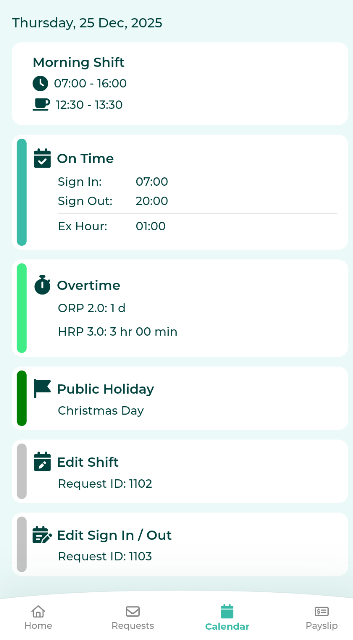
How are the statuses arranged in the Calendar for each day?

Question: In cases where multiple events occur on the same day (e.g. Half-day leave, Late Arrival, Missed clock-out, and Approved Edit Sign In/Out Request), how are these statuses displayed on the Employee Calendar?
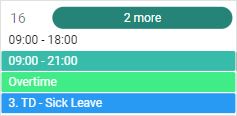
Answer: The employee Calendar can display a maximum of three colour bars per day.
If more than three statuses exist on the same date, the system will display a "More" button.
Clicking "More" allows users to view the additional status details for that date.
The system arranges colour bars or dots in the calendar the following order:
In a Web App
Shift Schedule Time
Sign-in/Sign-out times, Late In, Out Early, Absent, Invalid data.
Overtime
Leave
Weekly days off, Public holidays.
Edit Shift, Swap Shift
Edit Sign In/out
In the Mobile App
Sign In/Out, Late In, Out Early, Absent, Invalid Data
Overtime
Leave
Weekly Day Off, Public Holidays
Edit Shift, Swap Shift
Edit Sign In/Out
Example
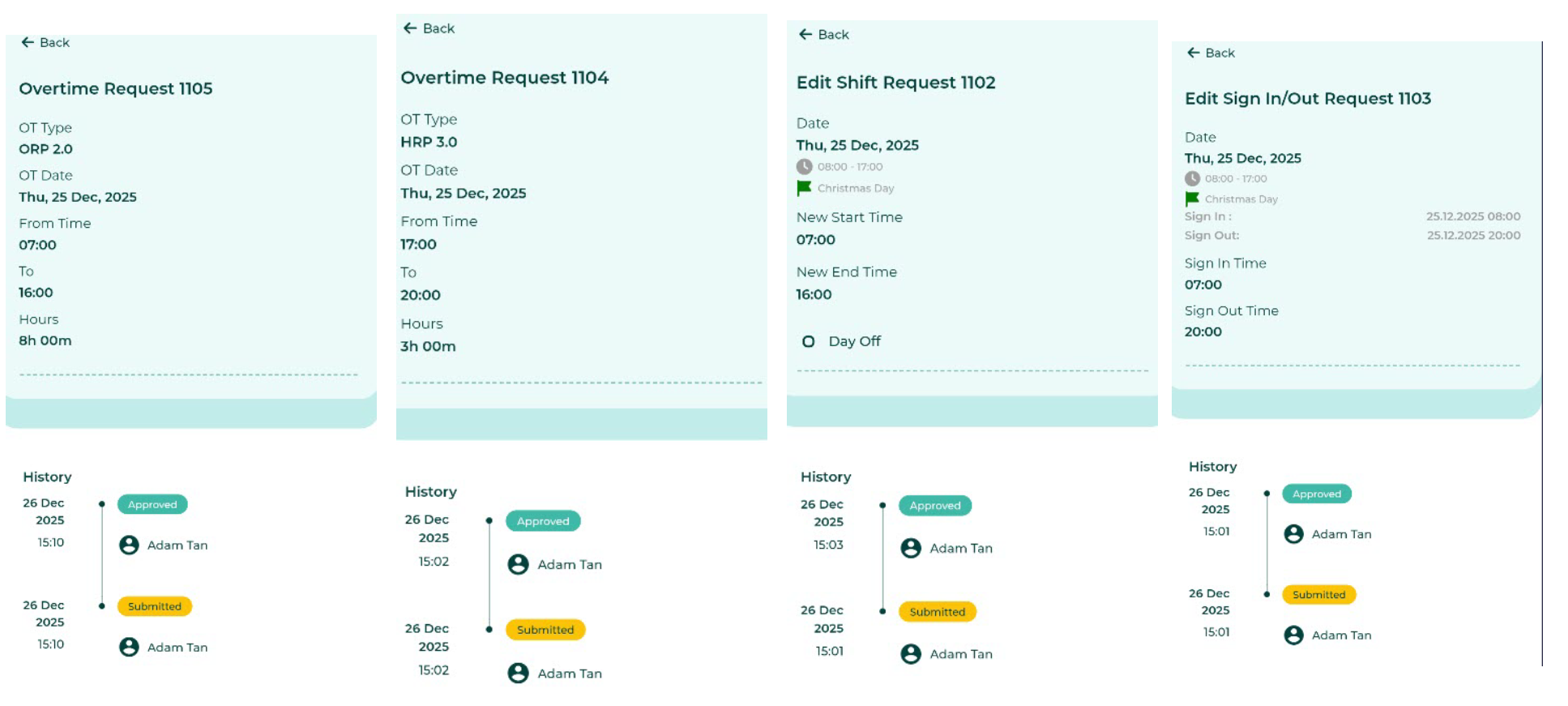
The employee's Overtime request on Public Holiday has been approved.
The employee's request to Edit Shift was approved.
The employee's request to Edit Sign In/Out has been approved.
The employee calendar for August 16, 2023 displays four colour palettes.
The green colour indicates the employee Signed In on time.
Lime green colour + stopwatch icon indicates Overtime request has been Approved.
The dark green + Flag indicates Public Holiday.
Grey colour + calendar icon with pencil indicates Edit Shift and Edit Sign In/Out request has been Approved.