Add Training

Guide to configuring training details.

Create Training

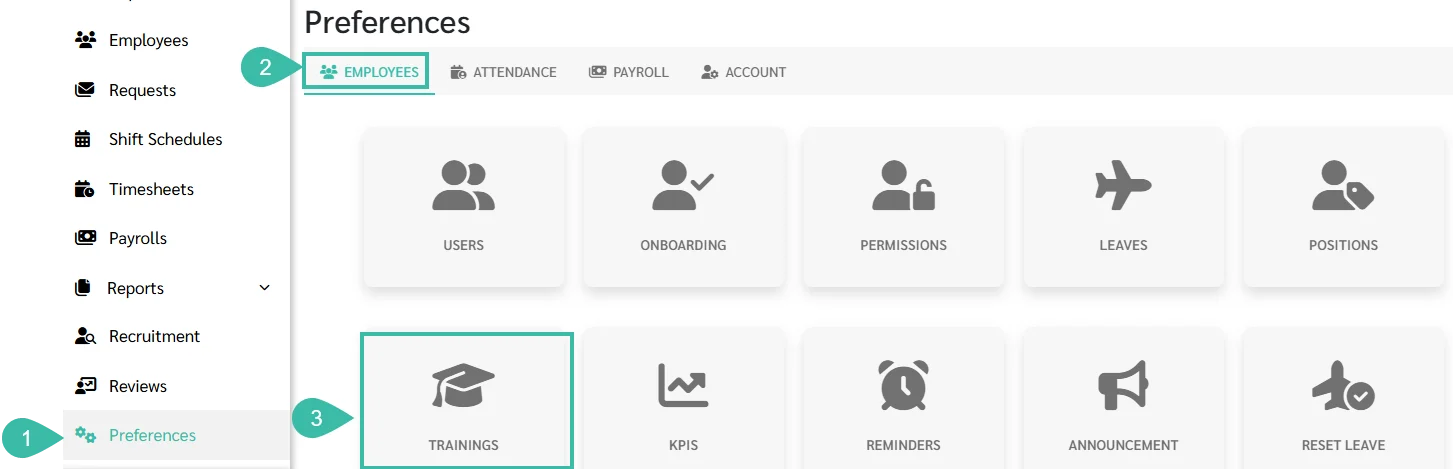
  1. Navigate to Preferences tab.

  2. Select Employees.

  3. Click Trainings.

    Preferences screen with the Employees tab selected, showing settings tiles including Trainings, which is outlined and pointed to by callout 3. Visible: Preferences, EMPLOYEES, ATTENDANCE, PAYROLL, ACCOUNT, USERS.

  4. Click Add.

    Trainings screen showing an ADD button and Search field; a teal arrow points to the ADD button. Visible: Trainings, ADD, Search.

  5. In the Name field, add the Name the training/seminar and select the Training type.
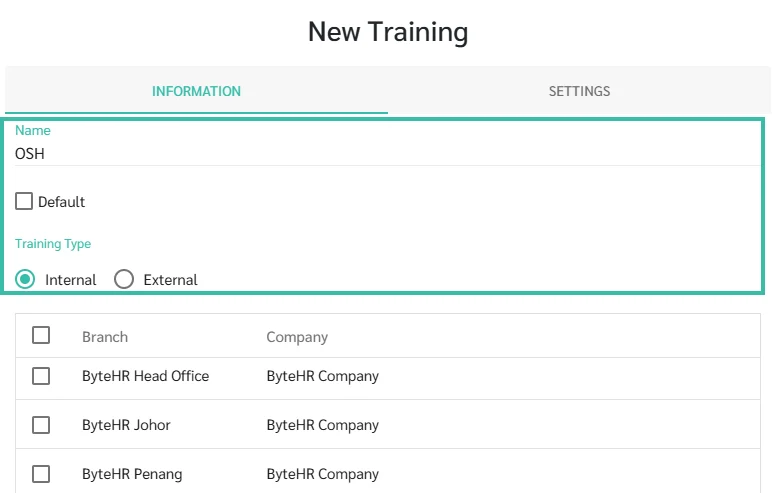
    The New Training form’s Information tab shows the name OSH, Internal training type selected, and a branch table with ByteHR locations. Visible: New Training, INFORMATION, SETTINGS, Name, OSH, Default.

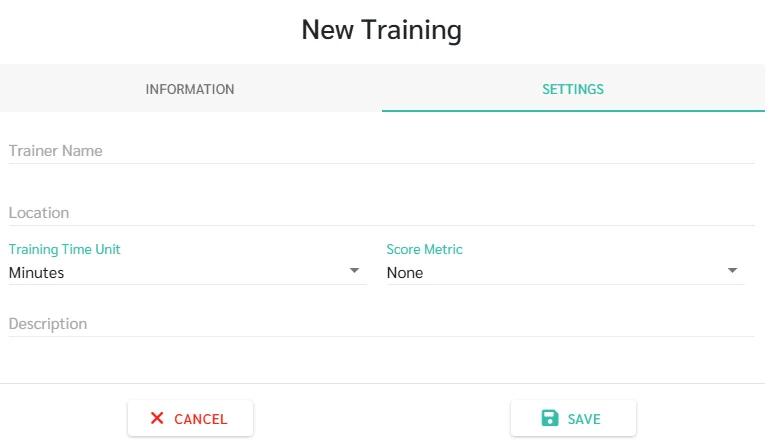
  6. In the settings tab, you can configure various details, including:

    • Trainer's Name

    • Training Location

    • Training Time Unit: Minutes, Hours, Days, or Times.

    • Score Metrics: None, Percentage (%), Pass/Fail, or Free Text.

    • Description: To further describe the Training.

  7. Finally, click Save.

    New Training form on the Settings tab, with trainer name, location, training time unit, score metric, and description fields plus Cancel and Save buttons. Visible: New Training, INFORMATION, SETTINGS, Trainer Name, Location, Training Time Unit.

Did this answer your question?
😞
😐
😁