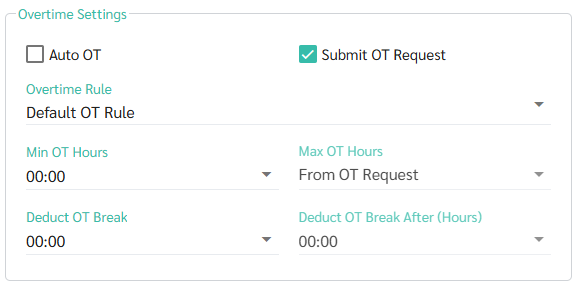
Ensure the Shift Schedule reflects the actual shift hours, then regenerate the Timesheet. It will show the scheduled shift hours as Regular Hours. Work exceeding those hours is calculated as OT; how it appears depends on the Shift Schedule settings below.
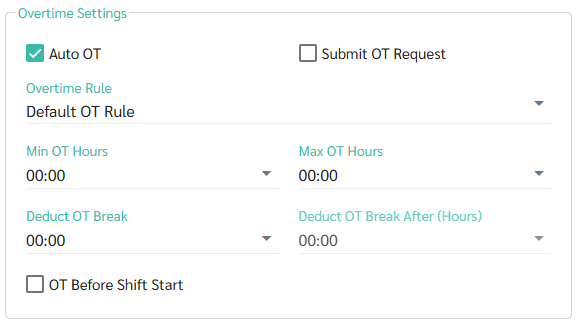
Case 1: Auto OT is enabled in the Shift Schedule
when an employee clocks in or out exceeding the defined Shift Hours/Day configured in Shift Schedule, the system will display it as Overtime Hours in the timesheet.
Case 2: Submit Request is enabled in the Shift Schedule
When an employee clocks in or out exceeding the defined Shift Hours/Day, the system displays it as Extra Work Hours in the Timesheet. Once the Overtime request is submitted and approved, the system will convert the extra hours into overtime hours.