

💬 Note
The Timestamp report will be displayed as follows:
Location Name
Displays the location name specified in the Branch Location or Employee Location categories, showing the nearest location.
Street Address
Shows the employee's location while signing in/out.
Longitude and Latitude
Displays the longitude and latitude of the employee's location while signing in/out.
Remarks
The notes entered by the employee when signing in/out will be displayed.
Photograph
This will be displayed when an employee takes a photo while signing in/out. You can click on the image to view it in full size.

How to View Reports.
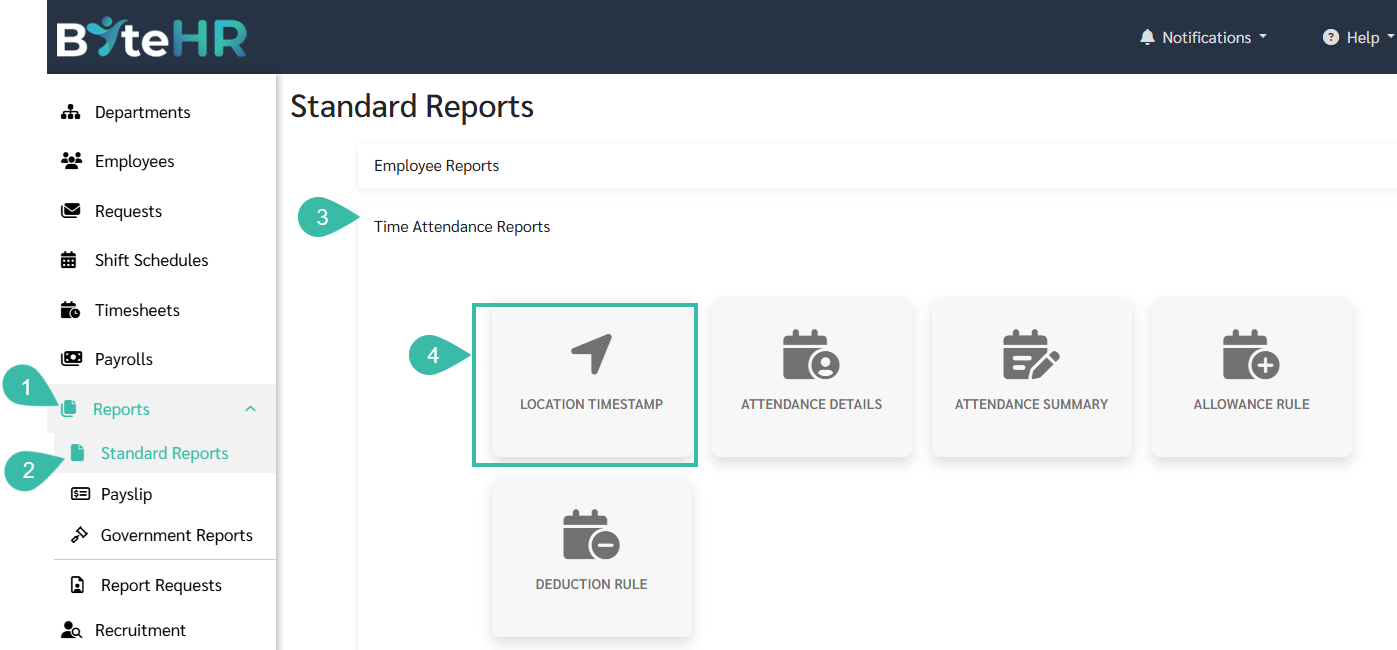
Go to Reports menu.
Click the Standard Reports tab.
Select Time Attendance Reports.
Click Location Timestamp.
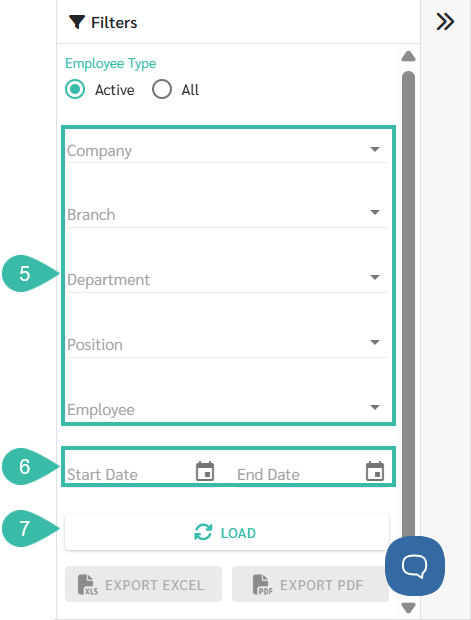
Select Company, Branch, Department, Position, or Employee.
Select the Start Date and End Date.
Click Load.
Arrange the columns as desired.
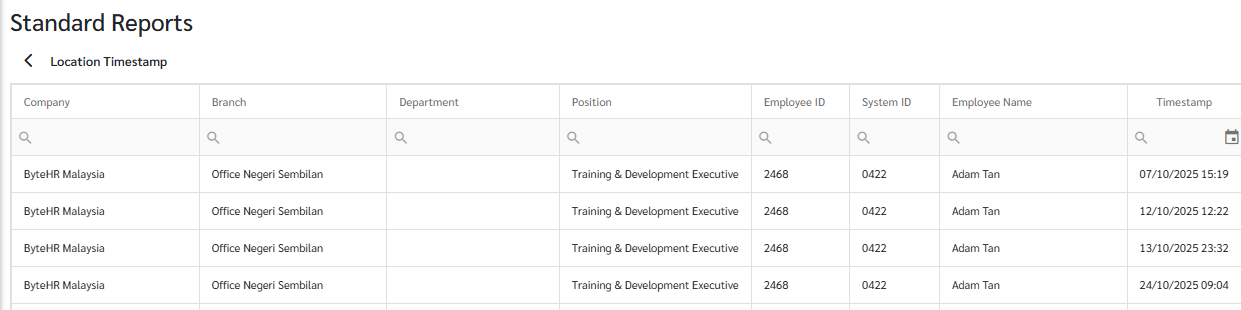
You can choose to download the file as a PDF or an Excel file.

🚩Note
Employee photos in the Location Timestamp Report will be deleted after 2 years.