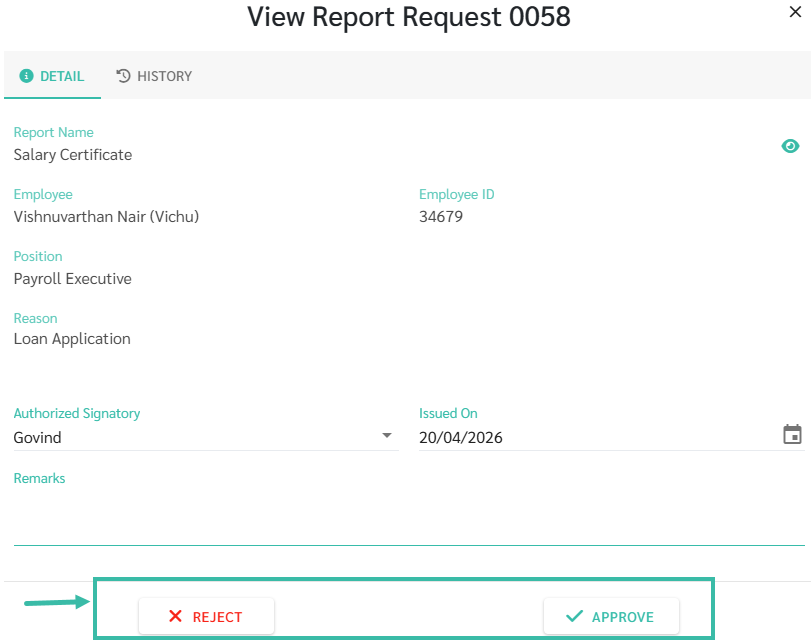
Process to Approving a Report Request
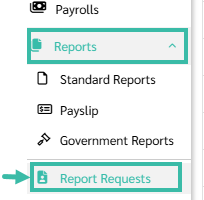
On the website, in admin view, click on the Reports menu-> Report Requests.
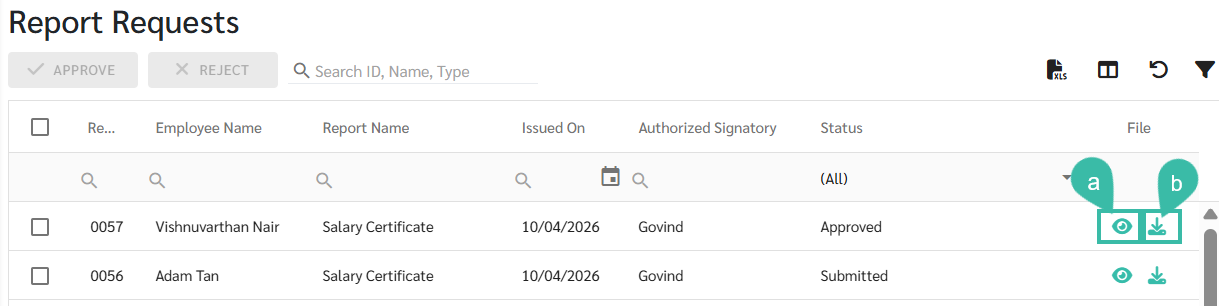
The system will display a list of certificate requests submitted by employees.
To review a Report Request:
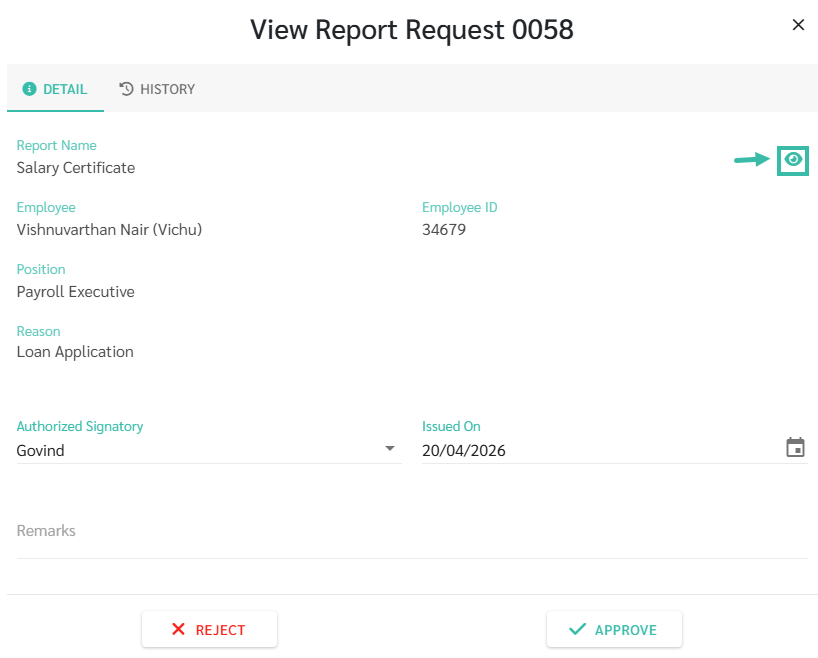
Click eye icon (View) to preview the certificate, or
Click download icon to download the certificate.
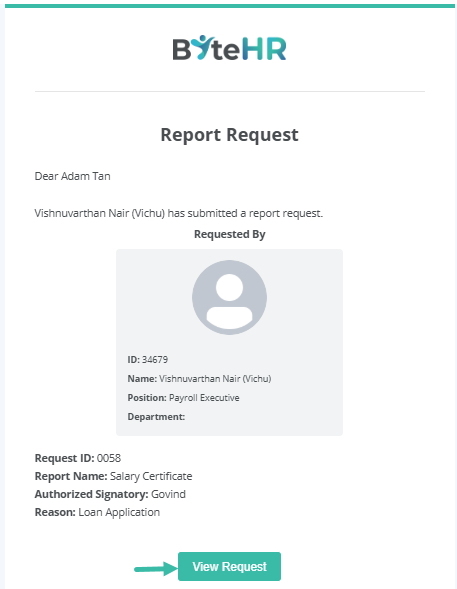
When a Request is submitted, an email notification will be sent to the Notify User that has been added under Reports -> Standard Reports -> Employee Reports -> Documents-> Notify Users.
You may also access the request via the email.
Click View Request to view details.
To preview the report:
Click the eye icon.
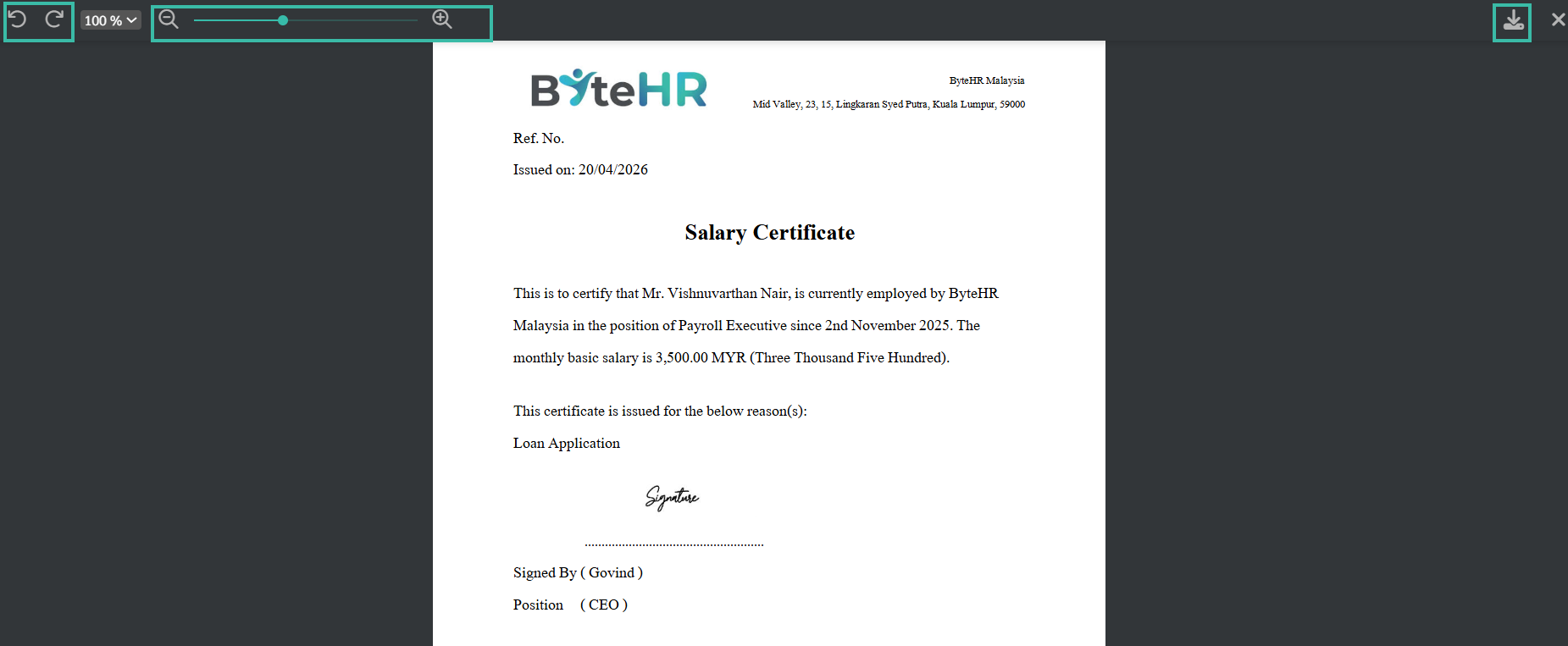
Use the arrow icon to rotate the document.
Use the magnifying glass (+/-) to zoom in or zoom out.
Click Download icon to download the report.
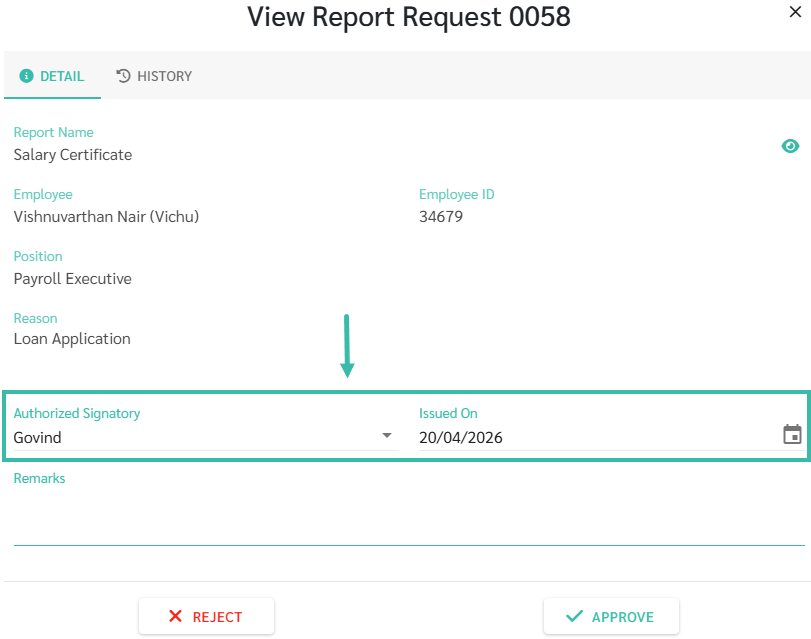
You may select the Authorized Signatory and specify the Issued on Date.
After reviewing all details:
Click Approve to approve the request, or
Click Reject to reject the Request.