
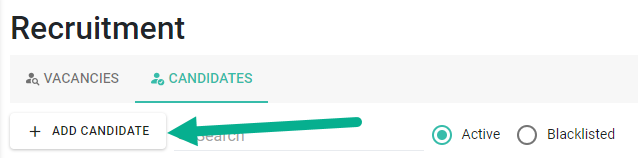
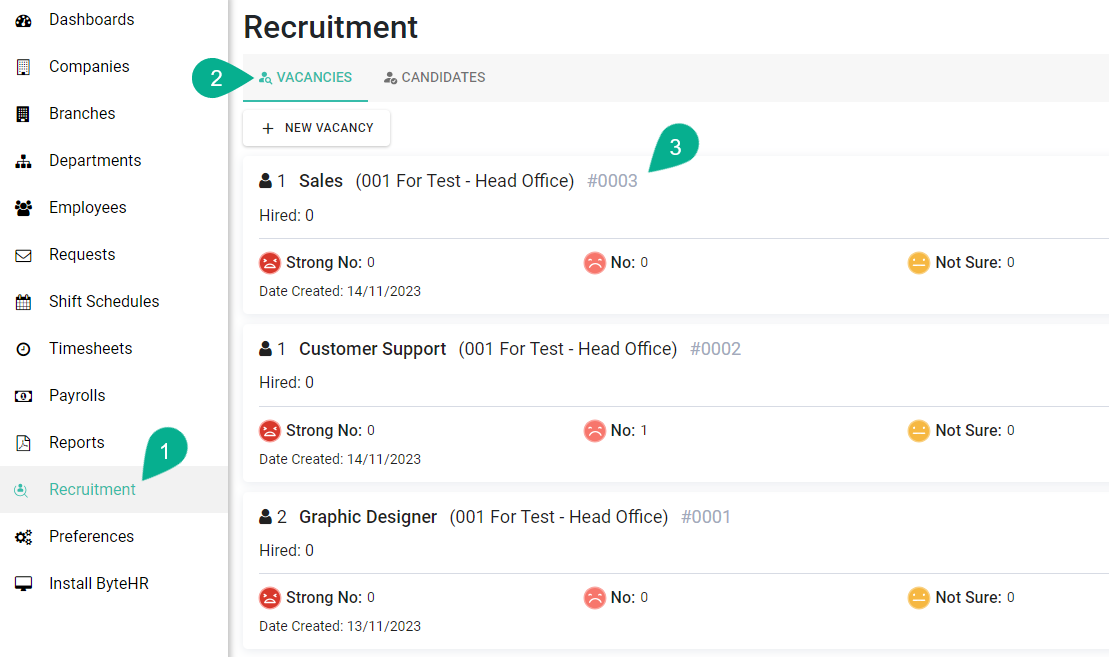
Option 1: From Candidates Tab
Go to Recruitment → Candidates
Click [+ Add Candidate]
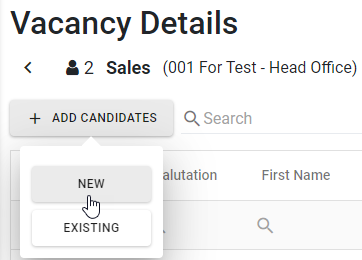
Option 2: From Vacancies Tab
Go to Recruitment → Vacancies
Select a vacancy
Click [+ Add Candidate] → [New]
Candidate Information
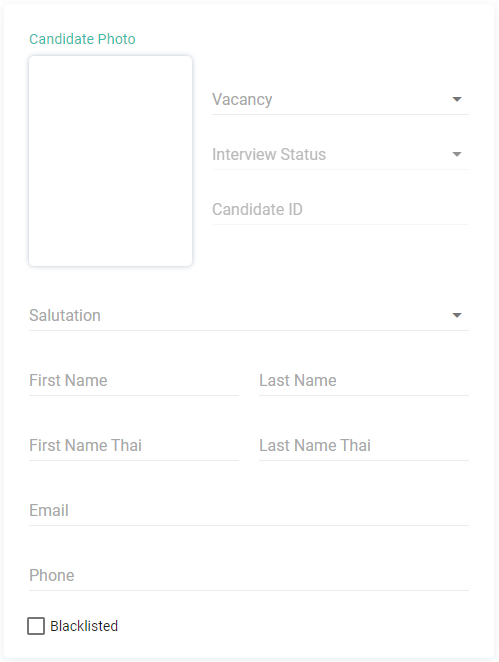
Basic Information (Left Panel)
Profile photo
Applied position
Interview status
Candidate ID (auto-generated)
Title (Required)
Full name (Required)
Email (Required)
Phone number
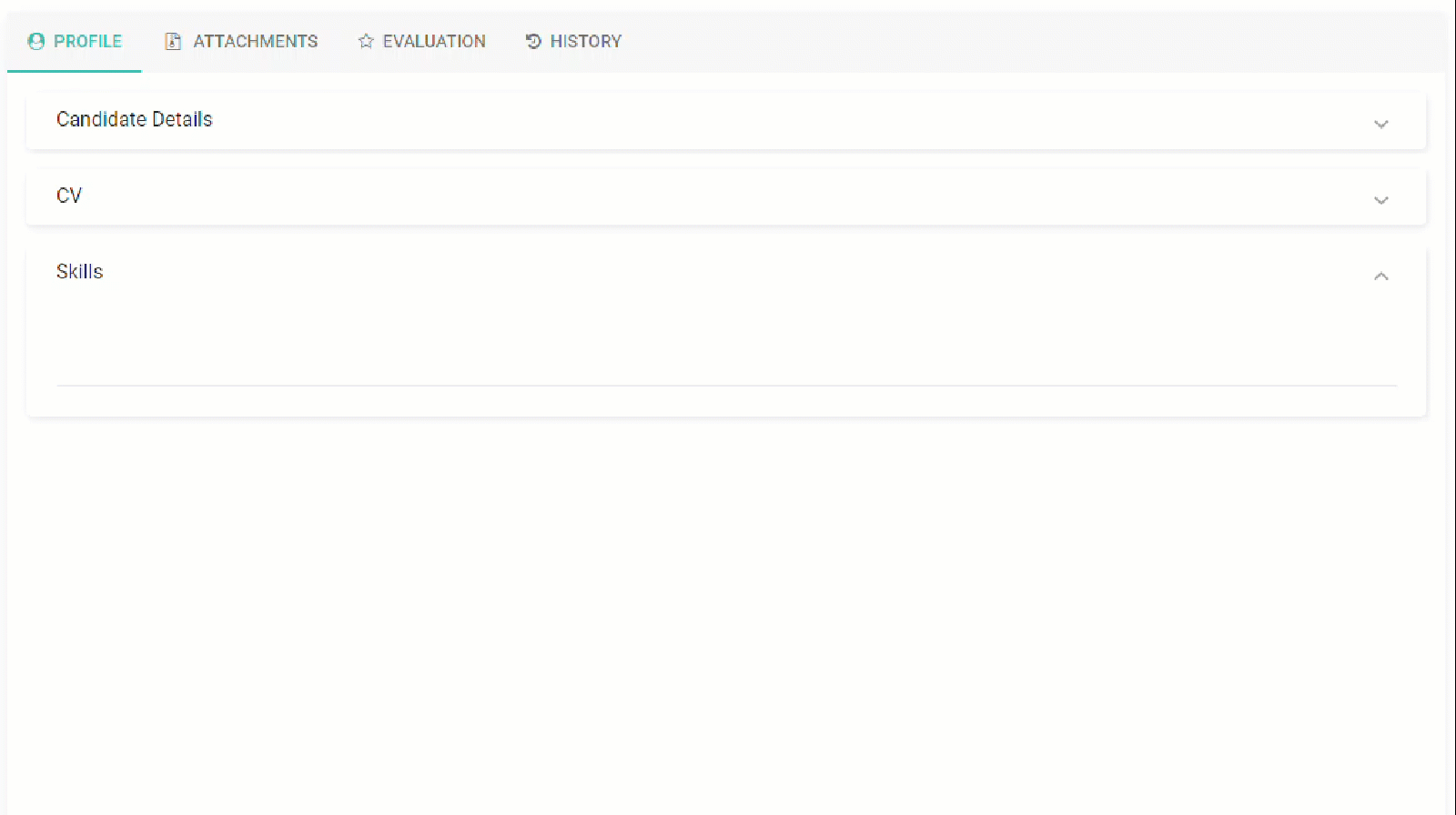
Profile Tab
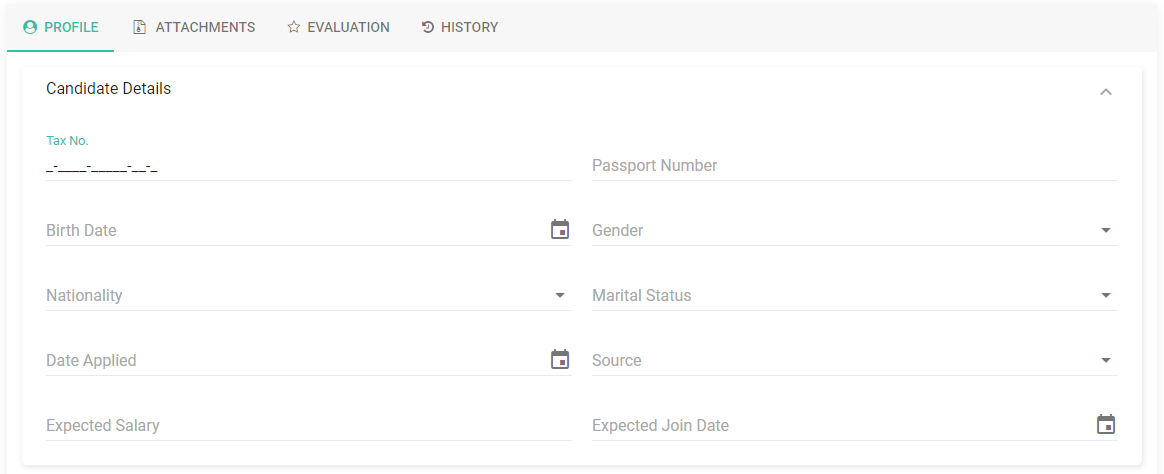
Candidate Details
Tax ID
Passport number
Date of birth
Gender
Nationality
Marital status
Application date
Source
Expected salary
Expected start date
CV
Upload candidate CV
Supported formats: doc, docx, pdf, images
CV preview is available

Skills
Add candidate skills
Previously entered skills will be saved for reuse
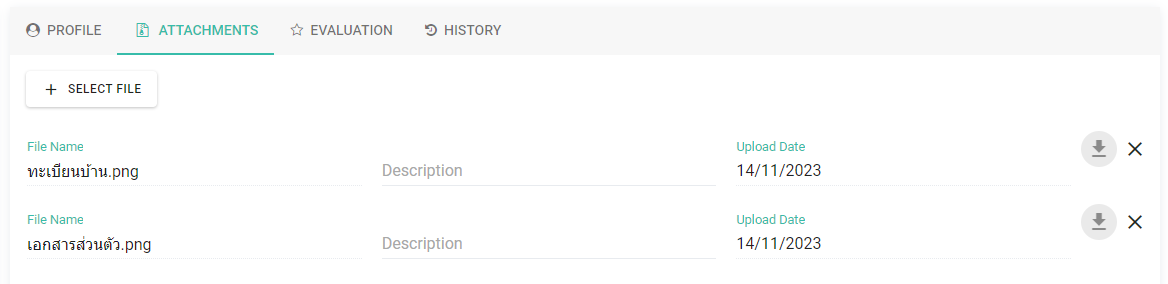
Attachments Tab
Upload supporting files
Supported formats: Word, Excel, PDF, ZIP, images
Max file size: 7 MB per file
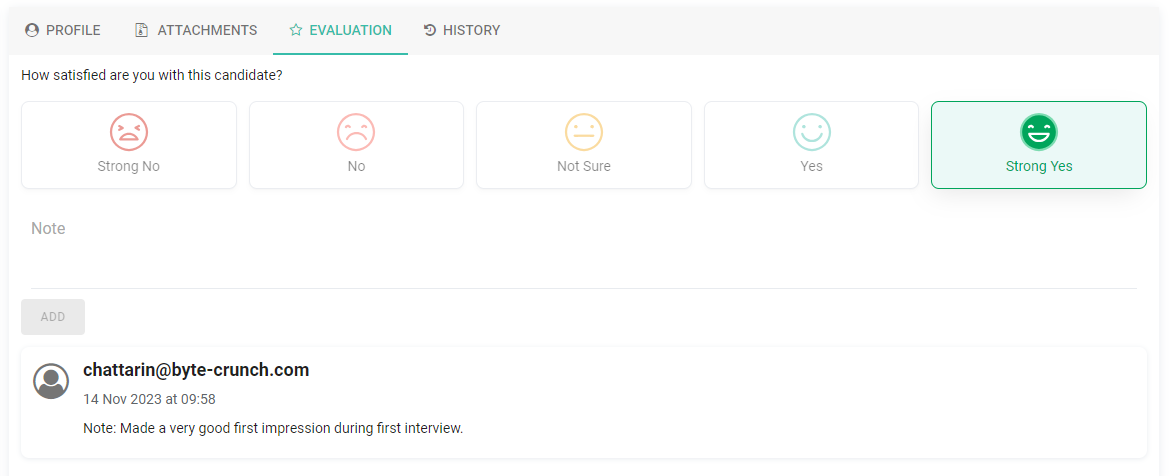
Evaluation Tab
Set evaluation level
Add notes
System records:
Author
Date & time
Changes made
History Tab
Displays all updates and changes to the candidate profile
Save Candidate
Click Save → The candidate will be saved and displayed in the list
You can click to view or edit the details anytime
Add Existing Candidate to a Vacancy
Go to Recruitment → Vacancies
Select a vacancy
Select the vacancy position
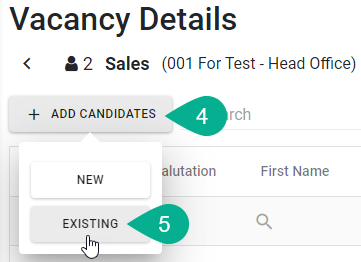
Click [+Add Candidates]
Click Existing
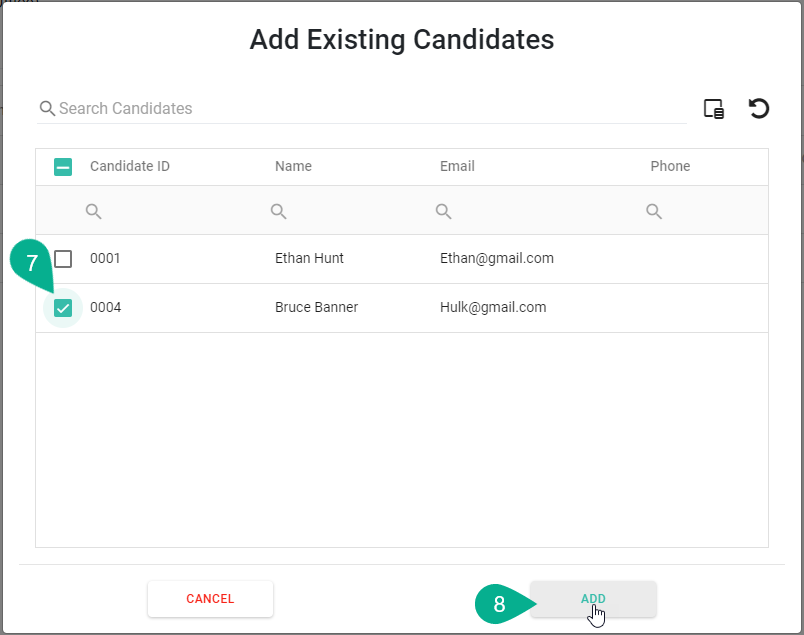
The system will show existing candidates
Select candidate(s)
Click Add
Note 📝
If a candidate is already assigned to another vacancy:
→ The system will remove the candidate from the previous vacancy automatically
Candidate ID is generated automatically after saving
Required fields: Title, Full Name, Email