
Steps to Create a New Vacancy
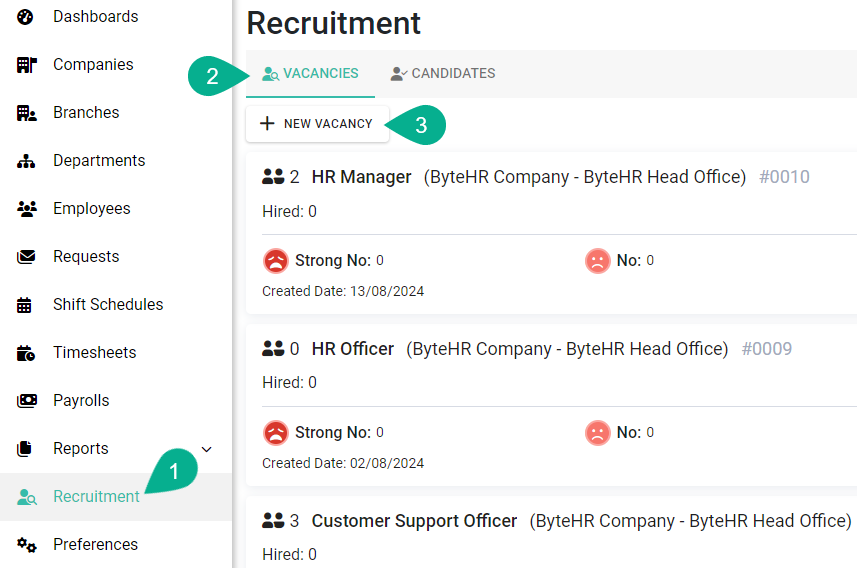
Go to the Recruitment menu
Navigate to the Vacancies tab
Click [+ New Vacancy]
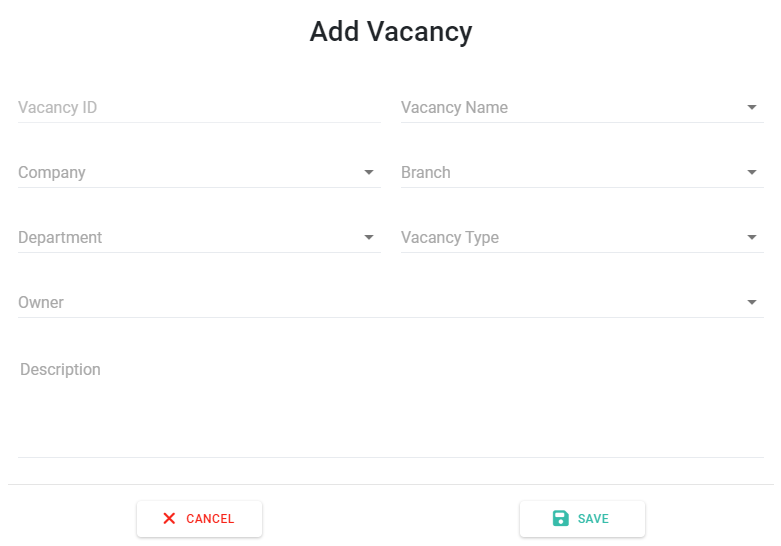
4. Enter Vacancy Details
Fill in the required and optional information:
Vacancy Name (Required)
Company (Required)
Branch
Department
Vacancy Type (Full-time or Part-time)
Owner
Description
5. Save the Vacancy
Click Save → The system will display the created vacancy with the following information:
5.1 Basic Information
Number of candidates
Vacancy name
Company and branch
Vacancy code
5.2 Actions
Open / Close vacancy
Generate vacancy link
Edit (pencil icon)
Delete (trash icon)
5.3 Hiring Summary
Number of hired employees
Candidate breakdown by evaluation result
5.4 Other Information
Vacancy creation date

Note 📝
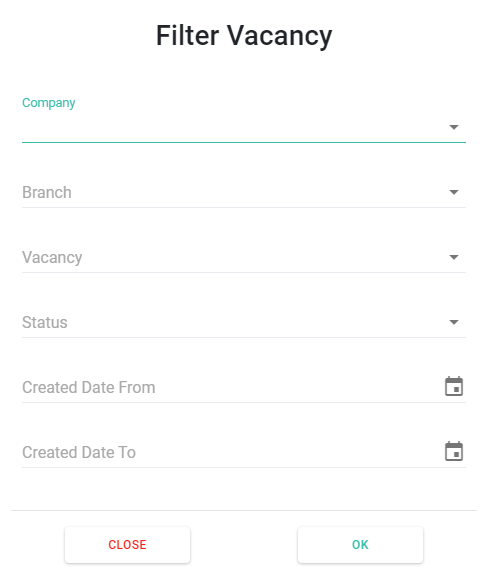
You can click the filter button at the top-right corner of the screen to search for specific vacancies
How to Close a Vacancy
Click the OPEN button on the vacancy
Select CLOSED
