
How to Upload Leave Days.
Go to Preferences.
Click Employees.
Select Upload.
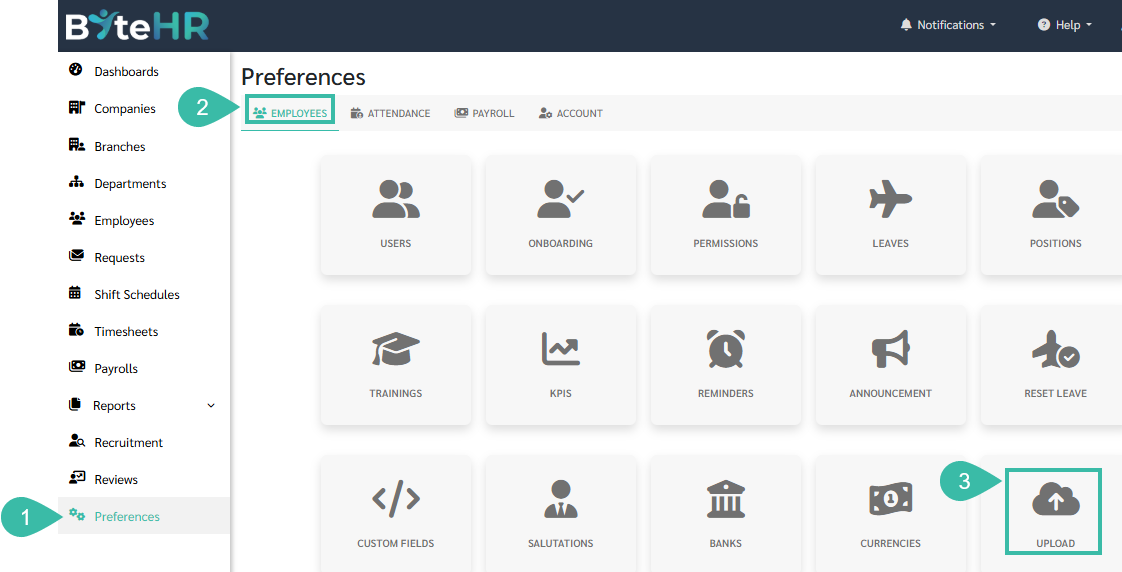
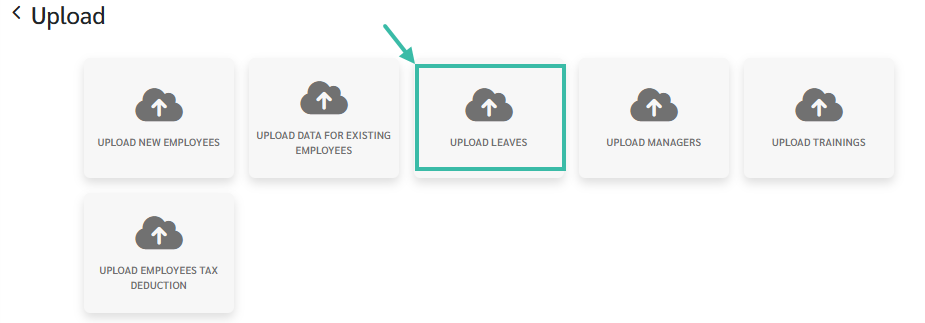
Choose Upload Leaves.
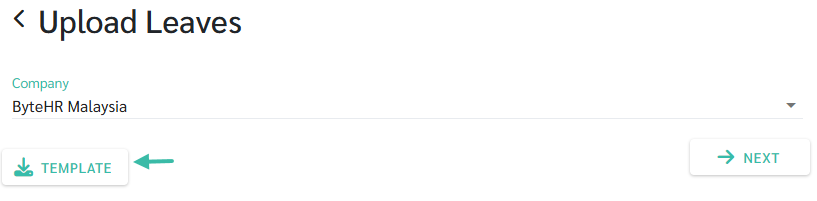
Click Template to download and fill in the details.
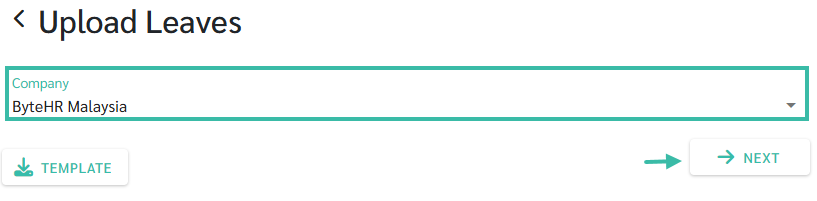
Once the template is completed, select Company and click Next.
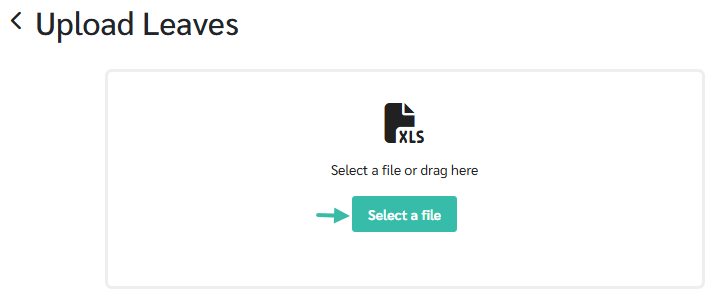
Select a File to upload the template.
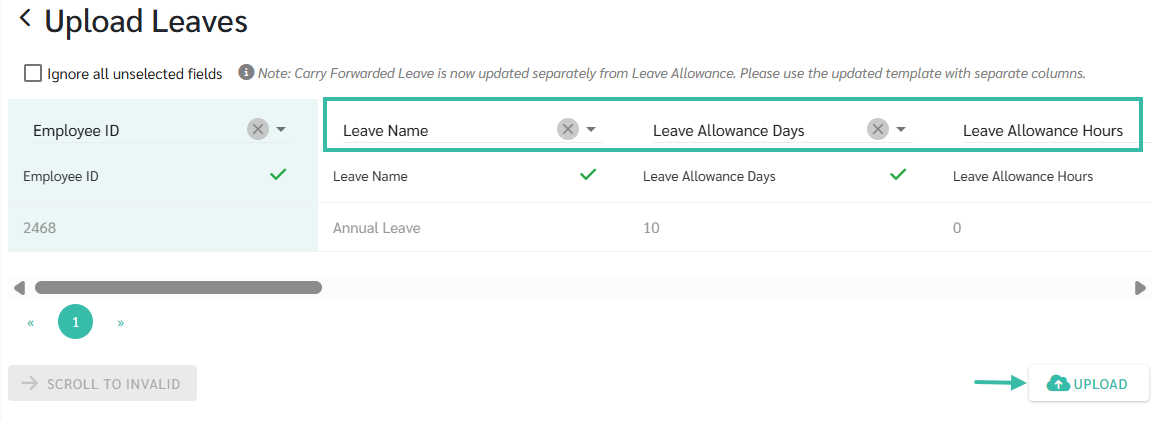
Match the fields accordingly and Click Upload.
Filling in the details in the Upload Leaves template.

In the Employee ID column, enter the employee ID as shown in the employee's profile.
In the Leave Name column, enter the name of the Leave, which must match the name specified in the system (Preferences -> Employees -> Leaves).
In the "Leave Allowance Days" and "Leave Allowance Hours" columns, enter the total leave days the employee is entitled for this year. *Do not include accumulated leave days carried forward from the previous year.
Columns for Used Leave Days and Used Leave Hours. In the Used Leave Days field, enter only the number of days. If the leave amount includes hours, enter those hours in the Used Leave Hours field.
Columns for Remaining Leave Days and Remaining Leave Hours.
In the "Carry Forward Days" and "Carry Forward Hours" columns, fill in the accumulated leave days carried forward from the previous year.
Columns for Used Carry Forward Days and Used Carry Forward Hours.
Columns for Carry Forward Balance Days and Carry Forward Balance Hours.
📝 Note
Uploading and editing leave days:
You can only upload and edit leave days for the current year.
You cannot upload and edit leave days for the next year.