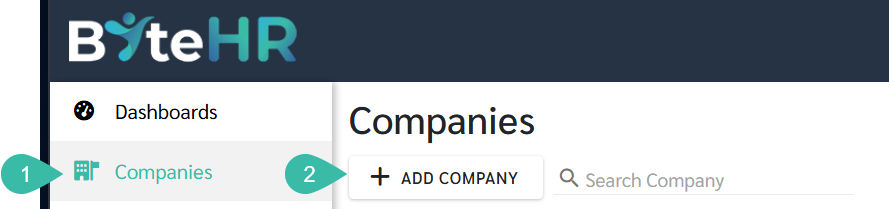
Adding a New Company to the system can be done as follows:
Go to the Company.
Click Add Company, then you can fill in the company's information.
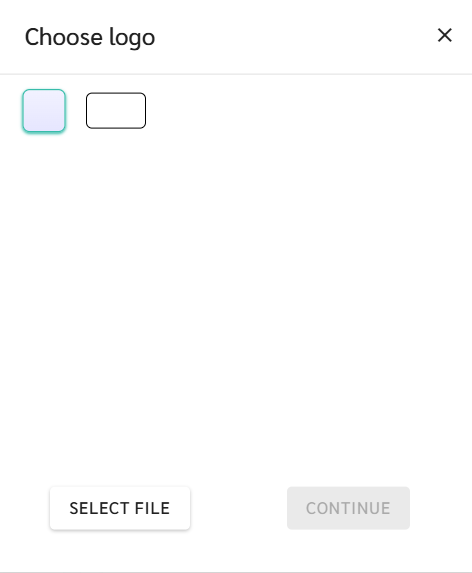
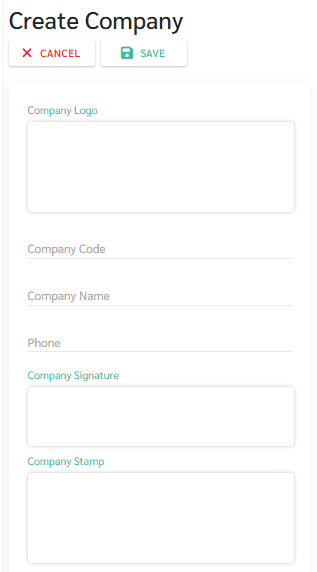
Click Company Logo to upload your logo image (maximum 3 MB).
Company Code refers to the business code.
Company Name: Please enter the company name in English.
Phone.
Click "Company Signature" to upload the authorized signatory's signature (maximum size 3 MB). This signature will be displayed in official reports.
Click Company Stamp to upload your stamp (maximum size 3 MB). This stamp will be displayed on your payslip and official reports.
Company Registration Number.
C Number: Company Tax Number.
E Number: Employer Tax Number.
EPF Number
SOCSO Number
Zakat Number
HRDF
The name and position of the authorized signatory will be displayed in various official reports, and more than one entry can be included.
Authorized Signatory NRIC Number
Email Address: Enter the company's contact email address.
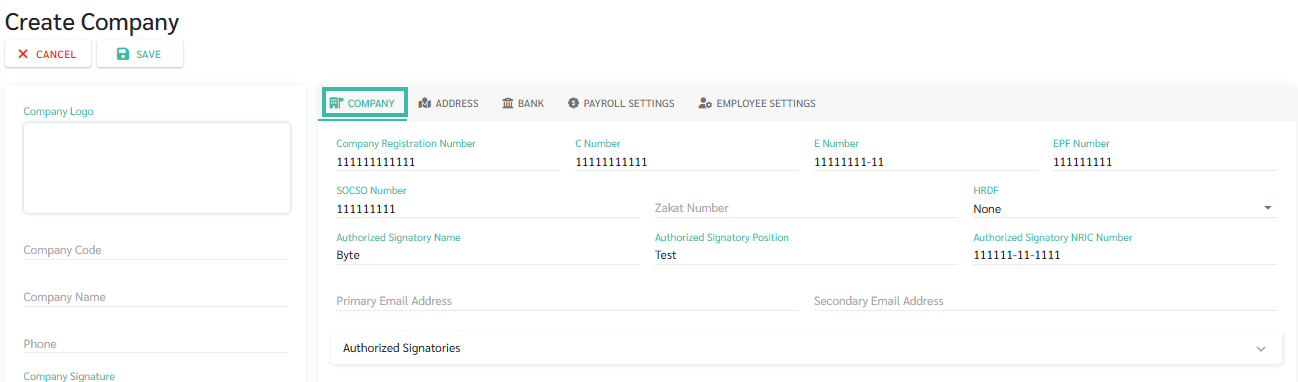
If there is more than one authorized signatory, you can add more authorized signatories without changing the primary authorized signatory. This can be found under the "Authorized Signatory Signatures" section.
Click on the heading "Authorized Signatory Signature" --> Click + Add Authorized Signatory.
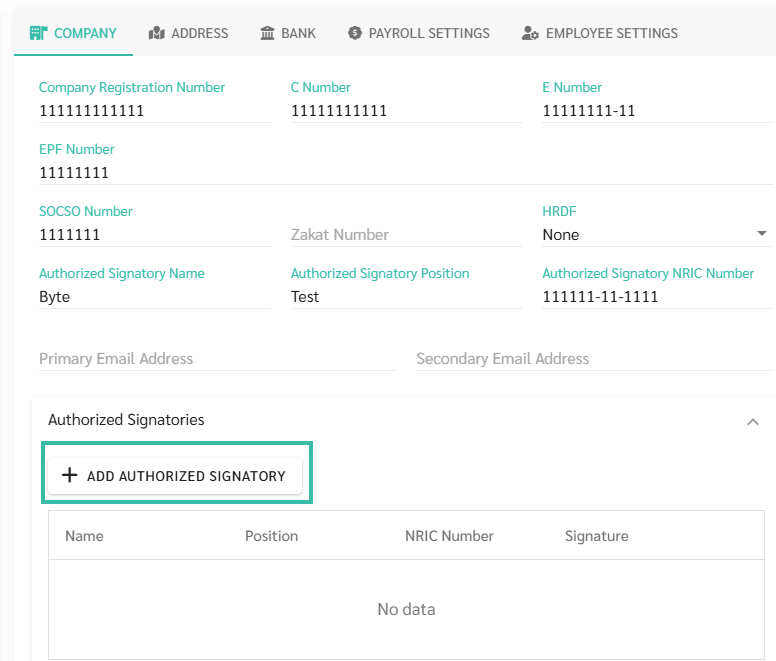
Fill in the name, position and NRIC Number of the authorized signatory --> Upload signature --> Click Save.
An unlimited number of names and positions of authorized signatories can be added.
The name and position of the authorized signatory can be selected and used in various official reports.
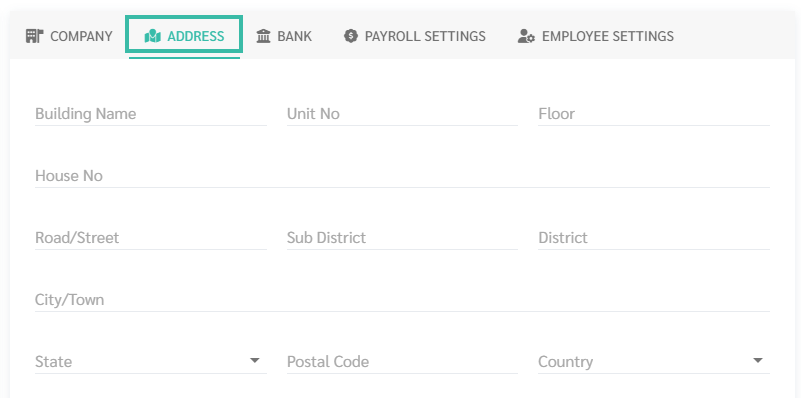
The company address should be filled in this section. The fields include:
Building Name:
Unit No.
Floor
House No.
Road/Street
Sub District
District
City/Town
State
Postal Code
Country
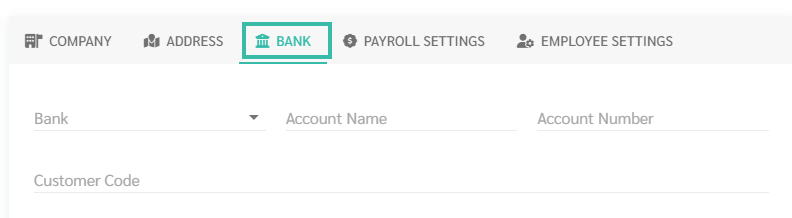
Bank: Please fill in the bank account details that the company will use to pay employee salaries. The system will use this information to create a bank file for you.
The details to be filled include:
Bank Name used to disburse employee's salary.
Account Name
Account Number
Customer Code: Corporate ID.
Option to process Payroll using Branch Payroll Settings.
Tax Method:
Progressive Tax Rate
Fixed Tax Rate
Employee Payslip Format:
Standard
Format 1
Salary Details:
Cut Off Date
Payment Schedule
Payment Rule
Reimbursement Details:
Cut Off Date
Period
Overtime
Cut Off Date
Period
Allowance Rules
Cut Off Date
Period
Deduction Rules
Cut Off Date
Period
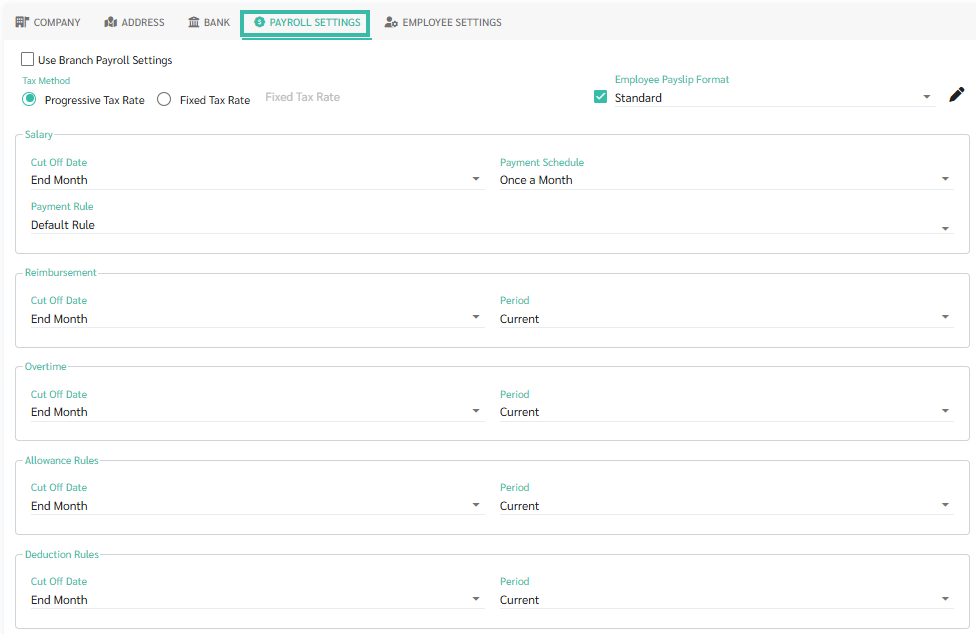
For further details on the Payroll Settings, refer Payroll Settings - Company & Branch.
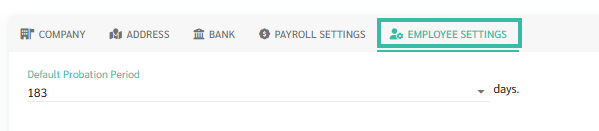
Default Probation Period:
You may select the Probation Period configured in the company:
30 days
45 days
60 days
90 days
119 days
183 days
After filling in all the sections, click Save.


📃Note
1. For company logos and seals, you can choose between a square or rectangular image.